Text Box
Automatically creates a responsive box behind text layers that follows and resizes with the text. Supports two modes: Shape Layer (creates a separate parented shape) and Effects Mode (applies effects directly to text). Features include customizable padding, stroke options, roundness, trim controls, and offset adjustments.
Overview
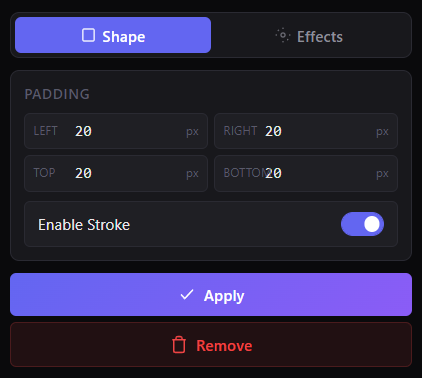
Text Box automatically creates a responsive background box behind your text that follows the text layer and resizes as the text changes. Choose between Shape Mode (creates a separate, parented shape layer) or Effects Mode (applies everything directly on the text layer). Padding, stroke, roundness, trim, and offsets are all adjustable for quick label, subtitle, and highlight designs.
Features
- Auto-resizing box that follows any text layer
- Two modes:
- Custom padding controls:
- Optional Stroke toggle
- Extra adjustable parameters after applying:
- Works on one or multiple selected text layers
- One-click Remove to clean up the setup
How to Use
1. Select one or more Text layers in your composition. 2. Choose a mode: - Shape (separate layer) or - Effects (direct on text) 3. Set padding values for Left / Right / Top / Bottom. 4. Enable or disable Stroke as needed. 5. Click Apply to create the text box. 6. Fine-tune extra parameters in Effect Controls (Roundness, Trim, Offset, Colors). 7. To remove, select the Text layer(s) and click Remove.
Notes
- Shape Mode is great when you want a clean, separate background layer you can style or animate independently.
- Effects Mode is faster for compact setups where you want everything on the text layer.