Super Shine
Add animated shine/sweep effects to any layer with customizable direction, shape count, and distortion. Supports horizontal and vertical sweeps with 1, 2, 3, or 5 parallel light beams. Includes wave distortion option and automatic marker placement for timing control.
Overview
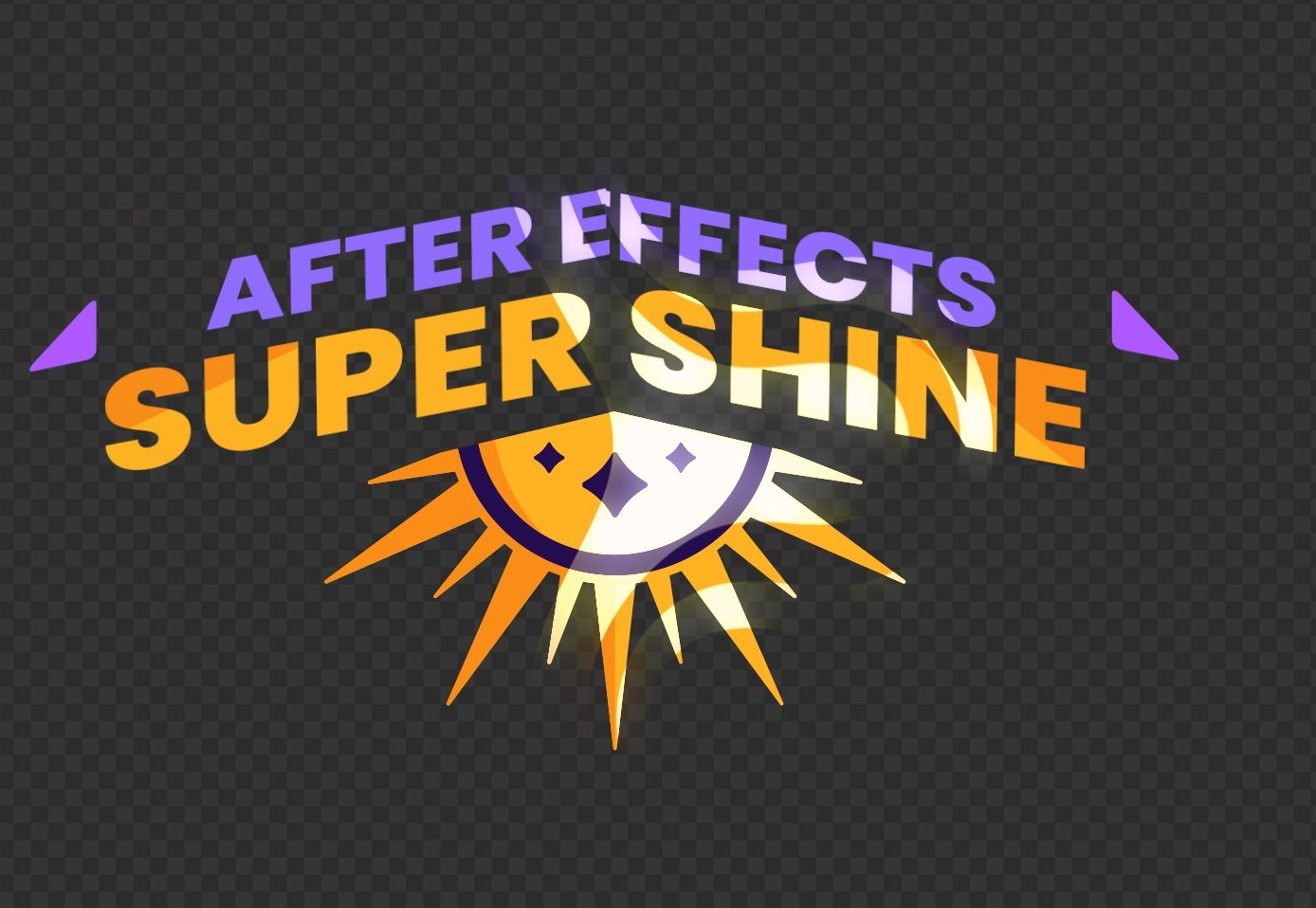
Super Shine adds a glossy animated shine/sweep highlight to any layer—perfect for logo reveals, titles, UI highlights, and reflective surfaces. Choose the sweep direction, the number of parallel beams, and optional wave distortion for a more organic look. The script also places timing markers automatically so you can control the sweep timing directly on the timeline.
Features
- Animated shine/sweep effect for any layer (uses the selected layer as the matte source)
- Sweep directions:
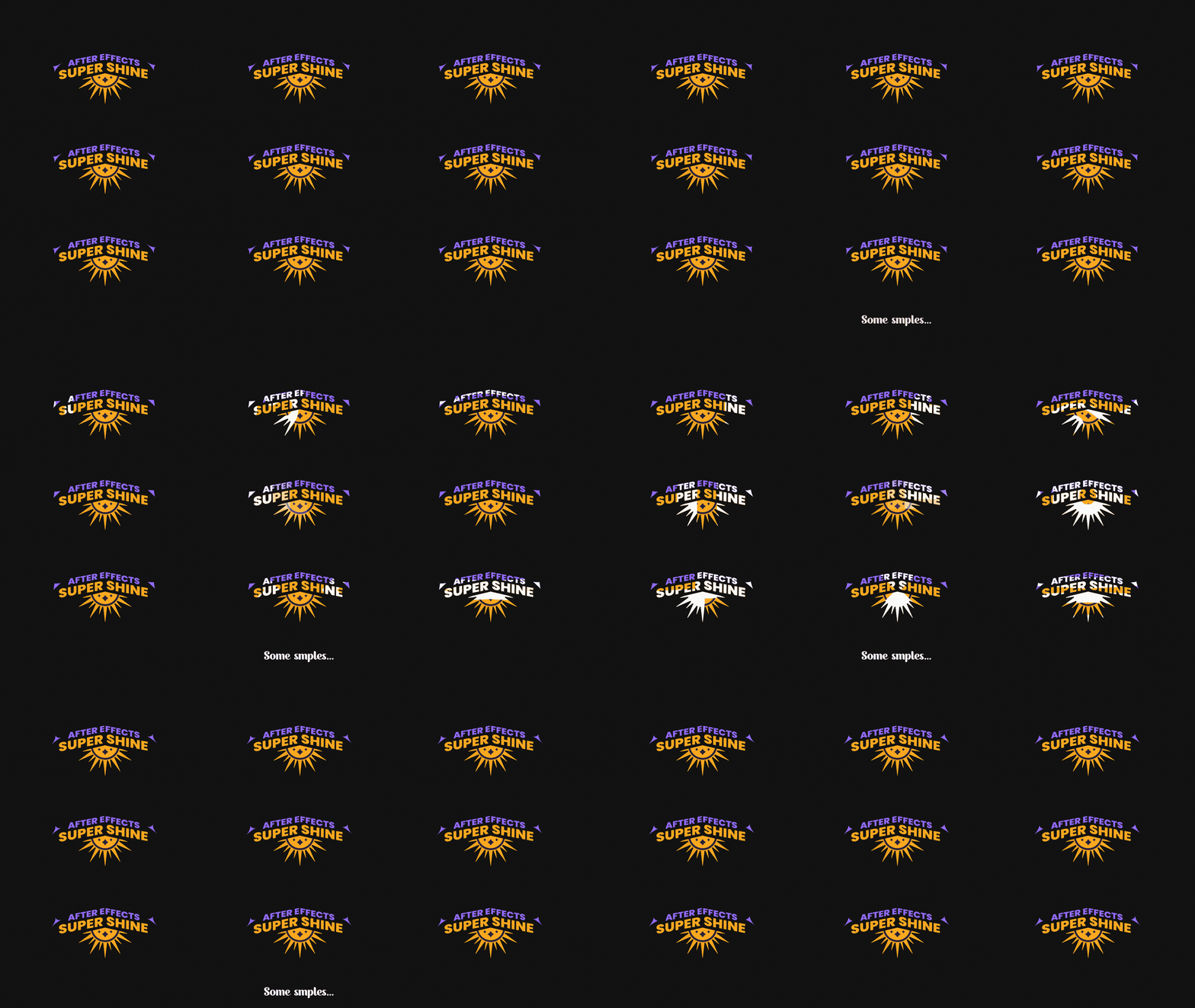
- Beam (shape) count options: 1 / 2 / 3 / 5 parallel shine beams
- Optional Distortion for wavy/organic movement
- Optional Effect Mode (additive/glow blend)
- Automatic timeline markers for easy timing control
- One-click Remove clears all Super Shine layers from the current comp
How to Use
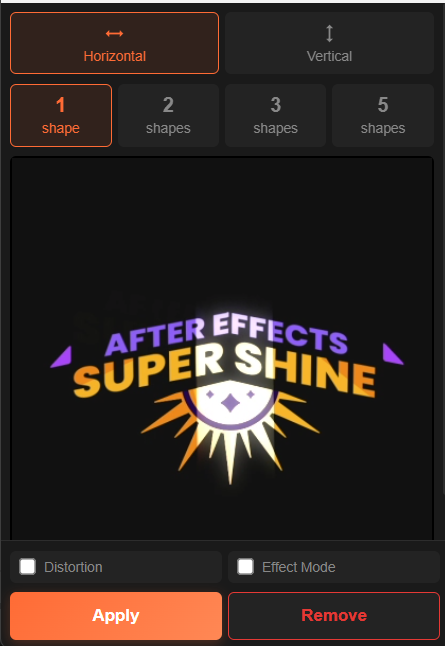
1. Select a layer in your composition (this will be used as the matte source). 2. Choose Direction: - Horizontal (left-to-right sweep) or - Vertical (top-to-bottom sweep) 3. Select Shape count: 1, 2, 3, or 5 beams. 4. (Optional) Enable Distortion for a more organic sweep. 5. (Optional) Enable Effect Mode for additive glow blending (Set Matte workflow). 6. Click Apply. An effect layer is created above your selected layer, with automatic timing markers. 7. To delete, click Remove to remove all Super Shine effect layers from the current composition.
Notes
- Use the Start Sweep and End Sweep markers on the timeline to control the animation timing.
- Effect Mode is useful when you want a glow-like shine without relying on Track Mattes.