Shape Splitter
Split Shape Layers into editable pieces: separate Contents into new layers, turn a path into per-edge Lines (Bezier or Straight), or slice closed paths into filled polygon parts. Includes auto-centering, stroke options, anchor centering, Keep Original, and a Merge tool to recombine layers.

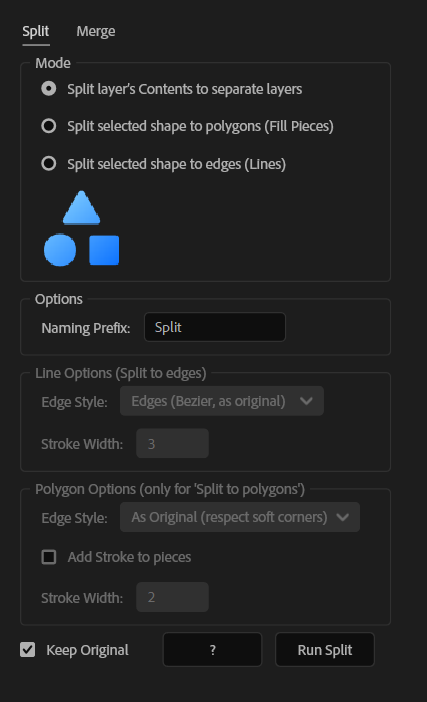
Overview
Shape Splitter breaks Shape Layers into clean, editable pieces in three different ways: split Contents into separate layers, split a selected path into per-edge lines, or split a closed path into filled polygon pieces. It keeps things organized by placing the results together at the comp center while preserving their relative layout—so you can animate parts immediately without manual repositioning.
Features
- 3 split modes:
- Edge styles for Lines/Polygons:
- Optional Stroke Copy + custom Stroke Width
- Workflow options:
- Auto-centers the result group in the comp while keeping the original layout
- Merge: combine multiple Shape Layers into one centered layer (preserves stacking)
How to Use
1. Choose a mode: - Split layer’s Contents to separate layers - Split selected shape to edges (Lines) - Split selected shape to polygons (Fill Pieces) 2. For Lines/Polygons, choose Edge Style: - Edges (Bezier, as original) or - Edges (Straight, no curves) (Optional) Enable Stroke Copy and set Stroke Width. 3. Set options: - Naming Prefix - Center anchor point to each new layer - Keep Original 4. Click Split. The new layers are placed together at the comp center, preserving their relative positions. 5. To combine shapes: - Select at least two Shape Layers - Click Merge The merged layer is centered and keeps stacking order.
Notes
- Polygons (Fill Pieces) requires a closed path.
- Lines keep the original curvature only when using Bezier edge style.
- Circles with 4 vertices produce 4 true quarter pieces.
- Works only on existing Shape paths (no auto-trace).