Select
A unified layer selection powerhouse for After Effects. Select layers by type, hierarchy, position, name, or custom patterns — with modifier-key selection modes (replace, add, subtract, toggle), live filters, and one-click layer switch toggles for shy, lock, solo, visible, 3D, and motion blur. The fastest way to wrangle complex timelines.

Overview
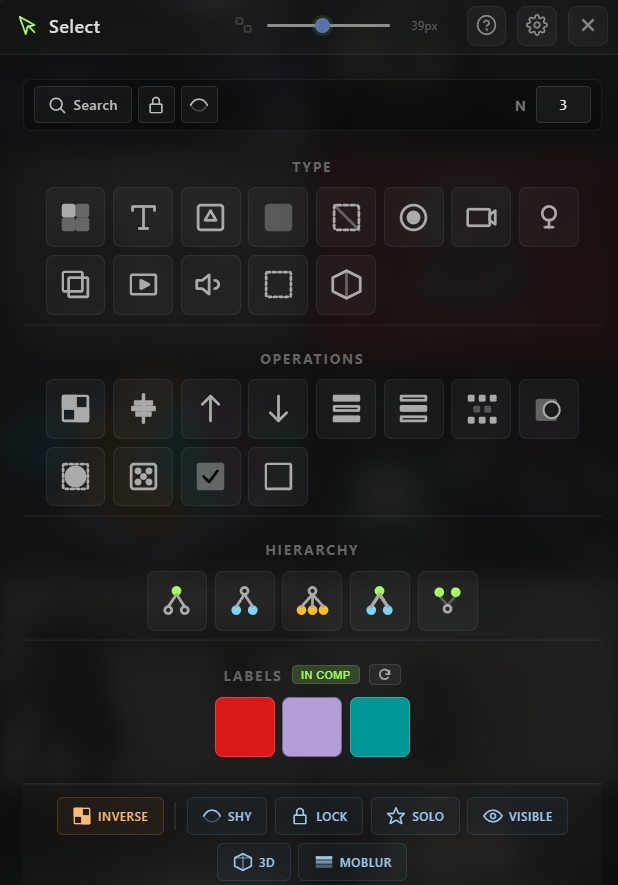
Select is a unified layer selection powerhouse for After Effects. It combines selection-by-type, hierarchy selection, operational selection (inverse, odd/even, at playhead, etc.), name-based search, and layer switch toggles into a single tabbed panel. Every selection action supports modifier-key modes — Shift to add, Alt to subtract, Ctrl/Cmd to toggle, or no modifier to replace. Live filters exclude locked or shy layers automatically, and the built-in Inverse mode flips every action to target non-selected layers instead. The tool also includes one-click toggles for layer switches (Shy, Lock, Solo, Visible, 3D, Motion Blur), making it easy to mass-modify layer states across a selection or across everything but the selection.
Features
Select by Type
Instantly select all layers of a specific kind in the active composition:
- Same as Selected — Matches the type of the first selected layer (Picky-style inference)
- Text — All text layers
- Shape — All shape layers
- Solid — All solid layers
- Null — All null objects
- Adjustment — All adjustment layers
- Camera — All camera layers
- Light — All light layers
- Pre-comp — All nested compositions
- Footage — All footage layers (images, video)
- Audio — All audio layers
- Guide — All guide-flagged layers
- 3D — All 3D-enabled layers
Selection Operations
Powerful non-type selection actions:
- Inverse — Select everything currently unselected
- At Playhead — Select all layers visible at the current time
- Above / Below — Select layers above or below the current selection in stacking order
- Odd / Even — Select layers by index parity
- Every Nth — Select every Nth layer using the N stepper in the top bar
- Matted — Select layers that are being affected by a track matte above them
- Matte — Select layers acting as track mattes for layers below
- Random — Randomly select a subset of layers
- Select All / None — Standard full-select and deselect actions
Hierarchy Selection
Parent-child relationship-aware selection with color-coded icons:
- Parents (green) — Select the parents of the currently selected layers
- Children (blue) — Select all layers parented to the current selection
- Siblings (amber) — Select layers that share a parent with the current selection
- Whole Hierarchy — Select everything connected to the selection up and down the tree
- Roots — Select the top-level ancestors (layers with no parent) in the hierarchy chain
Name Search with Modes
- Search — Opens a modal for typing a layer or source name (case-insensitive substring match)
- Choose the selection mode inside the modal:
- Searches both layer names and source names
Modifier-Key Selection Modes
Every button respects modifier keys for Picky-style operations:
- No modifier — Replace selection (default)
- Shift + Click — Add to selection
- Alt + Click — Subtract from selection
- Ctrl / Cmd + Click — Toggle selection
- Applies uniformly across Type, Ops, and Hierarchy sections
Selection Filters
Top-bar toggles that exclude certain layers from every selection operation:
- Lock Filter — Exclude locked layers
- Shy Filter — Exclude shy layers
- N Stepper — Set the N value for the Every Nth operation (2–99)
- Filters persist while the tool is open, so repeated operations all respect them
Layer Switch Toggles
Bottom footer row with one-click toggles for common layer switches:
- Shy — Toggle shy state
- Lock — Toggle lock state
- Solo — Toggle solo state
- Visible — Toggle layer visibility (eyeball)
- 3D — Toggle 3D layer state
- MoBlur — Toggle motion blur
- All toggles respect the Inverse button — when active, switches apply to non-selected layers instead
Inverse Mode
- Inverse button in the footer flips the behavior of every action
- When active, type selections choose non-matching layers
- Switch toggles apply to non-selected layers
- One click to enable, one click to disable
Fully Customizable Layout
- Hide section headers for a compact layout
- Hide individual buttons in any section from the settings cog
- Sections with zero enabled buttons don't render
- Tailor the panel to match your exact workflow
How to Use
Select Layers by Type
1. Open the Select tool from the Quick Tools menu or toolbar. 2. Click any type button (Text, Shape, Solid, Null, etc.) to select all layers of that type. 3. Use modifier keys to refine: - Shift+Click to add matches to the current selection - Alt+Click to subtract matches from the current selection - Ctrl/Cmd+Click to toggle matches in/out
Run a Selection Operation
1. Click any operation button (Inverse, At Playhead, Above, Below, Odd, Even, etc.). 2. For Every Nth, set the N value in the top bar first, then click. 3. Modifier keys work here too — use Shift/Alt/Ctrl to combine with existing selection.
Select by Hierarchy
1. Select a starting layer (the "anchor" for hierarchy resolution). 2. Click Parents, Children, Siblings, Whole Hierarchy, or Roots to extend selection up or down the parent chain.
Search Layers by Name
1. Click Search in the top bar (or Shift/Alt/Ctrl+Click for a specific mode). 2. Type a name substring in the modal (case-insensitive). 3. Choose a selection mode from the dropdown. 4. Click Find — matching layers are selected using the chosen mode.
Toggle Layer Switches
1. Select the layers you want to modify. 2. Click any footer switch (Shy, Lock, Solo, Visible, 3D, MoBlur). 3. The switch is toggled on the selection. 4. To apply to non-selected layers instead, click Inverse first, then click the switch.
Use Filters
1. Toggle Lock Filter in the top bar to exclude locked layers from every operation. 2. Toggle Shy Filter to exclude shy layers. 3. Filters stay on until you turn them off — great for clean mass-selection on busy timelines.
Notes
- Modifier keys are the secret to fast, precise selection. Instead of clicking Type → Text (replace), then shift-clicking Type → Shape (add), you can work through any combination of types in a single workflow.
- Every Nth is perfect for staggered animation prep — set N=3, select every third layer, apply an animation, repeat with offset.
- Matted and Matte operations are lifesavers for track matte workflows — quickly select all layers affected by mattes or all layers serving as mattes.
- Hierarchy selection is essential for character rigs — click the main control, then Whole Hierarchy to grab everything rigged to it.
- Filters (Lock and Shy) are sticky while the tool is open — they let you safely run mass operations without accidentally modifying locked or hidden layers.
- Inverse mode with switches is incredibly useful for hiding everything except the selected layers: select what you want, click Inverse, click Visible — everything else goes dark.
- Hide buttons you never use from the settings cog — most workflows only need 10-15 operations, and a focused panel is faster than a cluttered one.
- Same as Selected at the top of the Type list is a workflow accelerator — click a text layer, click Same, and all text layers in the comp are selected instantly.