PhysicDesk
A real-time 2D physics simulator for After Effects — fast, accurate, and running right inside your viewport. Build scenes with dynamic, static, and animated bodies; connect them through pivot, weld, spring, wheel, and rope joints; add force zones for wind, magnets, portal, and explosions; layer in particle emitters, fracture, soft bodies, and sound-driven motion. When the simulation looks right, bake every motion path into native After Effects keyframes — fully editable, ready to render.
Overview
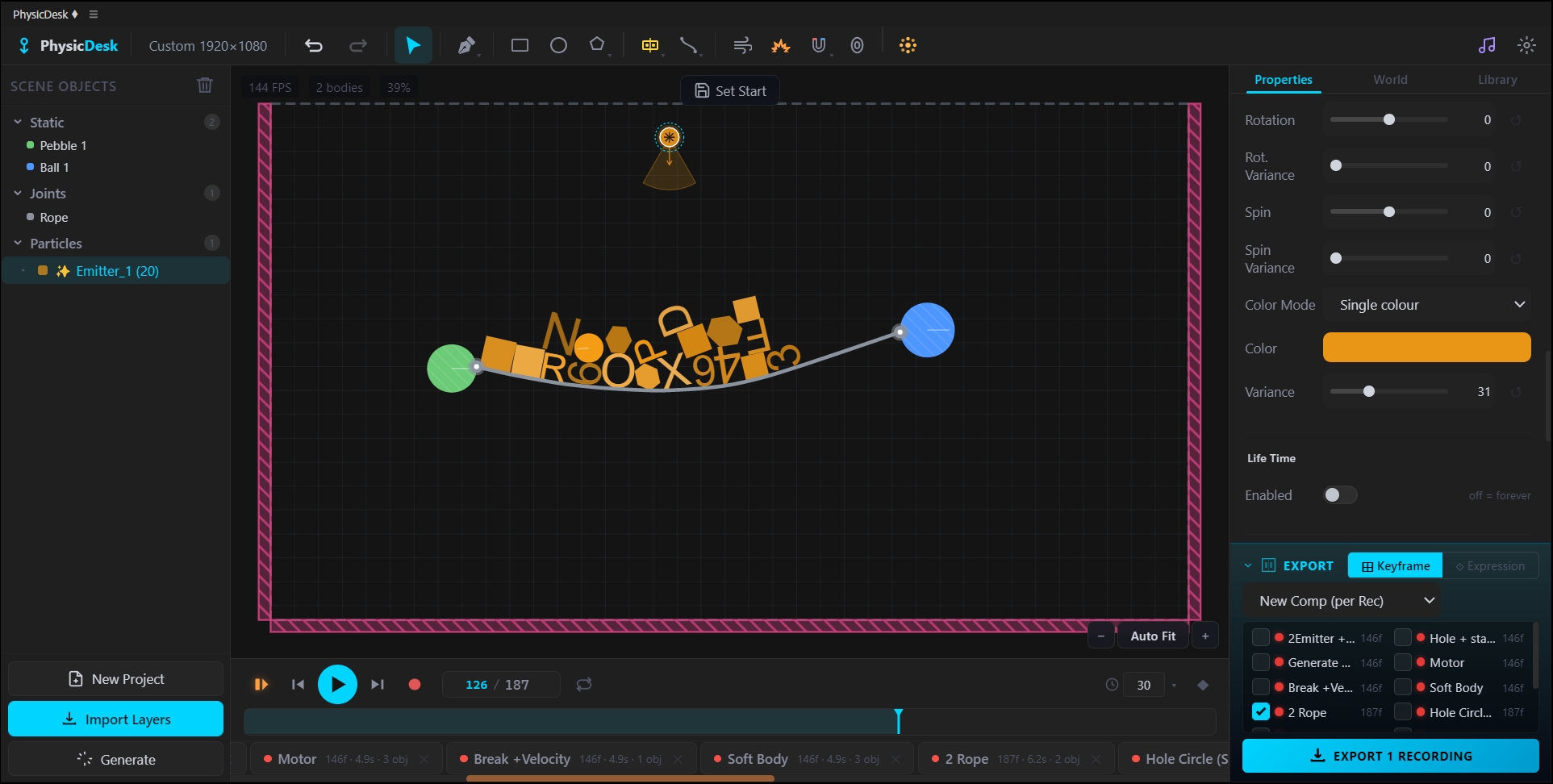
PhysicDesk turns any After Effects layer into a real physics body. Drop shapes, text, or imported layers into the panel, choose how each one should behave — falling, bouncing, swinging, deforming, following a path — and watch them collide, fracture, react, and respond to forces, magnets, wind, sound, and each other like the real world. Set up the scene the way you want it, hit Record, and bake the entire simulation back into your composition as native keyframes ready to render.
Designed for motion designers, not engineers — every control speaks the language of animation: drop, bounce, spin, break, follow, snap, swing. From a quick logo-on-the-floor moment to a full Rube Goldberg sequence, you build the scene visually, the physics runs in real time inside the panel, and the result lands in your timeline as standard keyframes that play back the same in every language of After Effects.
Features
Ten Body Types
- Dynamic — Reacts to gravity, bounces, collides, and gets pushed around
- Static — Solid floor, wall, or obstacle that never moves
- Motor — Continuous self-driven motion with six modes: Oscillate X, Oscillate Y, Oscillate XY, Rotate, Pendulum, Orbit
- Sleeping — Starts at rest and stays put until something hits it
- Elastic — Snaps back to its starting position like it's on a spring
- Path Follow — Moves along a path you draw, with One Way, Round Trip, or Loop playback
- Soft Body — Deforms on impact, with three modes: Spring-Mass (cloth-like mesh), Pressure / Balloon (volumetric), Blob / Jelly (squishy mass)
- Keyframed — Plays the keyframes of an AE-imported layer, then optionally hands off to physics
- PhysLink — Stays live-linked to its AE source layer for round-trip work
- Dead / Disabled — Frozen in place and ignored by physics until re-enabled
Every Shape You Need
- Primitives — Circle, rectangle, polygon (any number of sides), star, capsule
- Custom paths — Draw freehand straight-line or curved polygons with the pen tool
- From AE — Import any shape layer, text layer, or parametric shape with the original look kept intact
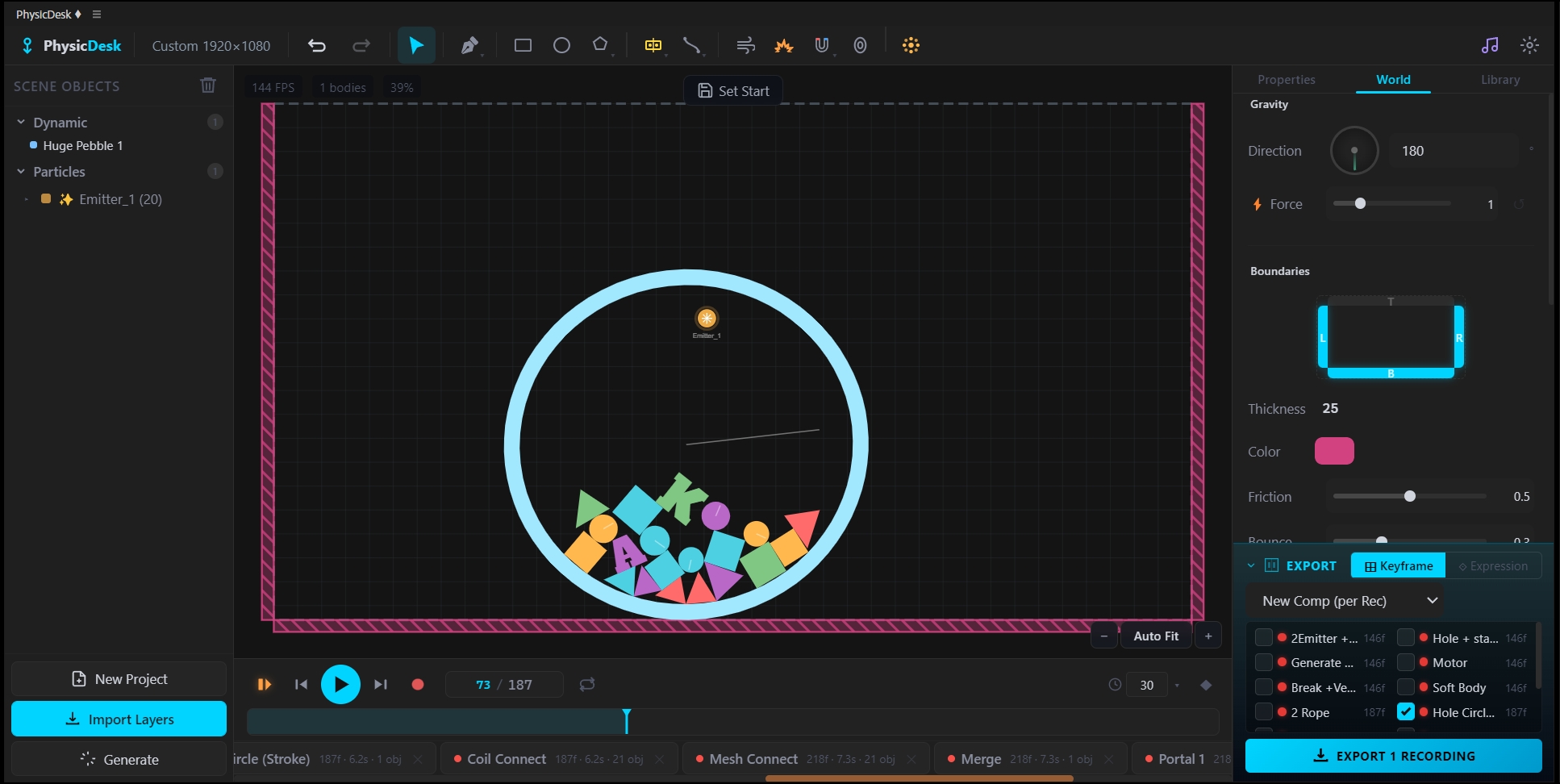
- Hollow Shapes (Stroke) — Just-the-outline bodies that catch other shapes inside, with adjustable stroke width
- Trim & Cut Mode — Open a hollow shape at any angle by trimming its start and end, turning closed containers into one-way traps or funnels
Seven Joint Types
- Weld — Rigidly bind two bodies as one
- Pivot — Pin two bodies so they swing around a shared point
- Spring — Elastic link with tunable stiffness and damping
- Piston — Sliding linear constraint with optional motor
- Wheel — Mount a body on an axle so it rolls, with optional motor for self-driven wheels
- Pin — Anchor a body to a fixed point in the world
- Rope — Flexible chain link with stretchable mode, segment count, gravity, and collision; renders into AE as an animated shape path
Three Force Zones
Draw zones on the canvas that act on bodies inside them:
- Wind — Directional push with two independent turbulence channels (Direction wobble and Intensity gust), each with its own amount and frequency for natural-feeling air
- Magnet — Pulls bodies inward with stability, snap distance, falloff curve, and asymmetric damping for clean magnetic catches
- Repeller — Pushes bodies outward radially
Special Tools
- Explosion — Timed burst at any frame; bodies inside launch outward with adjustable strength and radius
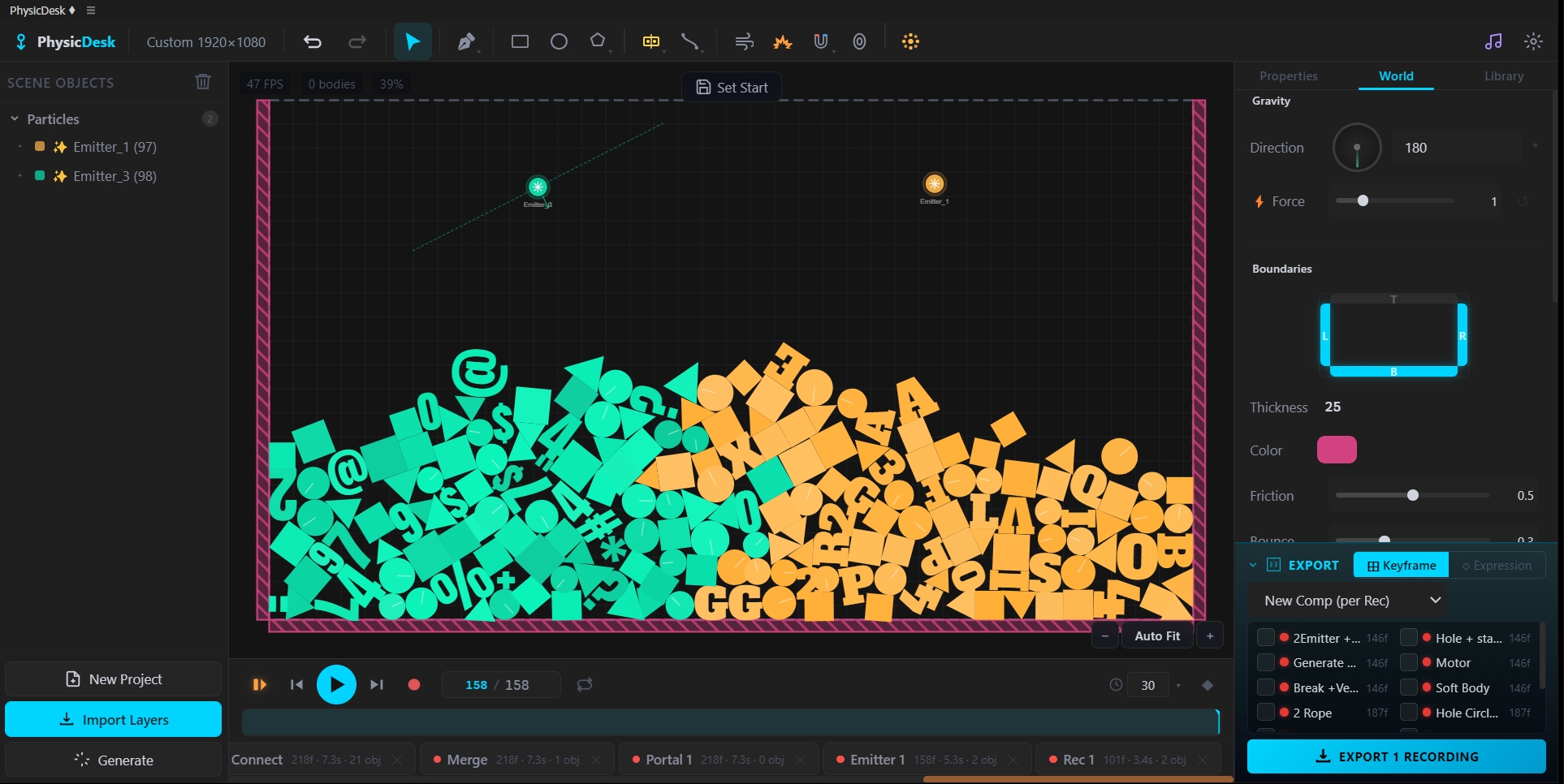
- Particle Emitter — Spawn streams of particles, letters, numbers, symbols, or custom shapes with full control over lifetime, spawn rate, direction, spread, speed, angular velocity, color variance, color palette, color inherit modes, and fadeout
- Portal — Teleport bodies from one point to another in the scene
Per-Body Powers
- Magnetic Body — Any body can act as its own magnet, pulling nearby bodies in
- Conveyor Belt — Any body can become a directional conveyor with adjustable speed
- Parenting — Bodies can follow another body's motion with offset, creating linked rigs
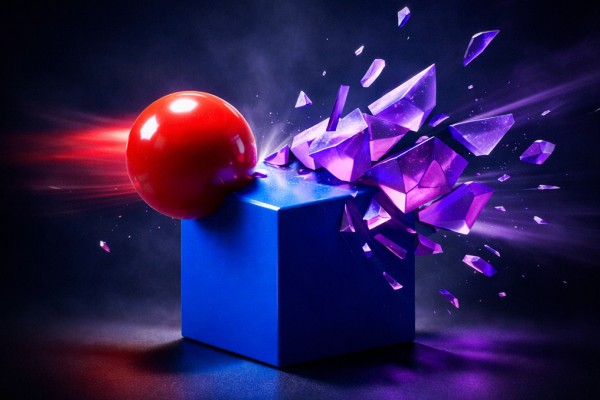
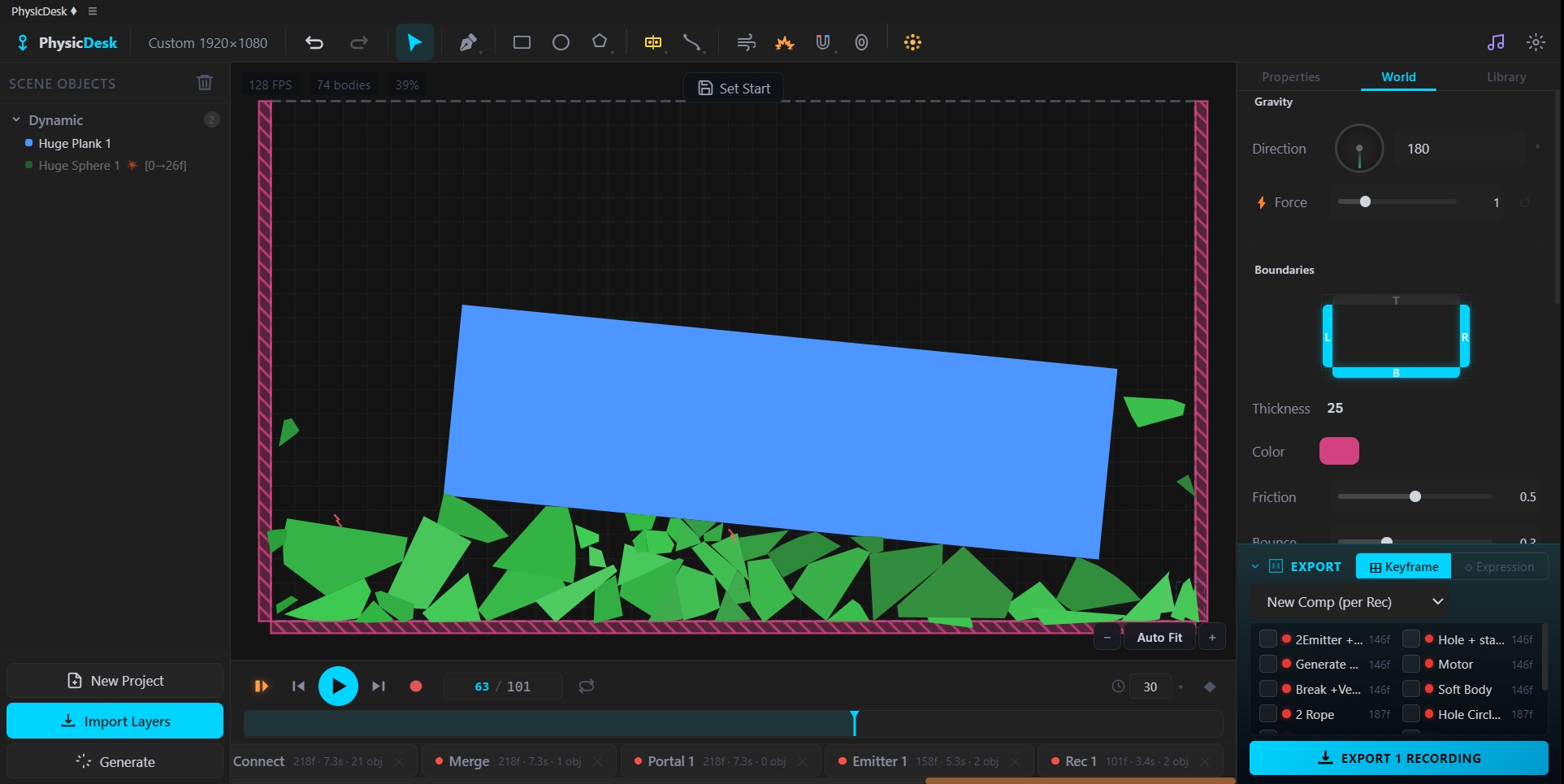
- Breakable — Any body shatters above a hit threshold, with hit counter, fracture pattern, fragment count, and cascading chain-break for re-breakable fragments
- Fixed Rotation — Lock spin while keeping linear motion
- Air Resistance — Per-body drag for floating, falling-leaf, parachute behaviour
Collision System
- Six Collision Actions — On every impact, a body can Bounce normally, Freeze in place, Change Gravity, Change Friction, Spin, or Disappear — chain reactions made trivial
- Fifteen Collision Sounds — Brick, Metal, Glass, Wood, Stone, Ceramic, Rubber, Pop, Ding, Whoosh, Clank, Thump, Tap, Chime, Click — auto-triggered on impact, with optional comp markers placed in AE for audio sync
- Five Collision Groups — Groups A, B, C, D, E with per-body assignment and per-zone affect-group filtering, so different sets of bodies can ignore each other or only respond to specific forces
Material Presets
- Pre-built feels — Metal, Rubber, Wood, Stone, Ice, Bouncy, Sticky, or fully custom
- Per-body control of weight, density, friction, bounce, and air drag
- Save your own materials to the Material Library and reuse across projects
- Optional hit threshold so a gentle nudge doesn't trigger a reaction
Sound-Driven Physics
- Audio reactive bodies — Bind any property (size, position, rotation, color, force strength) to live audio
- Spectrum analysis — Sample the audio's frequency spectrum across multiple bands
- Multiple bindings per body — Layer drum-band, bass-band, mid-band reactions for complex audio-driven motion
- Use any AE audio layer as the source
Keyframed and PhysLink
Bring AE-animated layers into the physics world without losing their motion:
- After-keyframes modes — Dynamic (lets physics take over), Dynamic + Velocity (continues with the speed at hand-off), Static (locks), Loop, Ping-Pong
- Vel Strength slider — Boost or dampen the exit speed at the moment the animation hands off to physics
- Curve-aware exits — The body keeps the direction it was actually heading, even on curved paths
- Sync Keyframes from AE — Pull updated motion from AE any time the source layer changes, through any parent chain
- Move keyframes with the body — Drag, drop, or retype X/Y on a Keyframed body and the entire animation path moves with it
Drop Tool
- Single drop — Bodies fall straight down to the first surface beneath them
- Multi drop — Each selected body lands on its own target
- Directional duplicate — Drop copies in a line with even spacing
- Stays aligned — Drop respects the body's rotation, so polygons land flat
- Keyframe-aware — Dropping a Keyframed body brings its animation path along
Fracture on Impact
- Breakable — Any body can shatter when hit hard enough
- Natural fragments — The break pattern looks real, not gridded
- Hollow shapes break correctly — Stroke and ring fragments keep their geometry
- Color modes — Fragments inherit, randomize, gradient, or keep a fixed color
- Re-breakable — Fragments can themselves be set to break further, for cascading destruction
Generate
- Mass create — Spawn dozens or hundreds of bodies in one click
- Random distribution — Uniform, packed, scattered, or grid-aligned placement
- Inherits properties — All bodies share material, type, and behaviour of the source
Multi-Select & Batch Edit
- Multi-select — Select any number of bodies at once
- Batch properties — Change mass, density, friction, bounce, gravity scale, air resistance, body type, color, collision group across the whole selection in one move
- Group operations — Drop, align, distribute, duplicate, fracture-enable, breakable-enable — all in bulk
Alignment & Distribution
- Six align modes — Left, Center-H, Right, Top, Center-V, Bottom
- Two distribute modes — Even horizontal spacing, even vertical spacing
- Single-body align — Respects strokes so bodies don't poke through walls
- Multi-body align — Align selected bodies relative to each other
Recording & Export
- Record — Capture the simulation as it plays
- Multiple takes — Save several versions and switch between them without re-running physics
- Snapshot before record — Automatic rollback point taken every time you start a recording
- Playback — Scrub back through any recording instantly
- Export to AE — Bake any recording into a new comp or back into the source comp as native position, rotation, and scale keyframes
- Universal expressions — All exports use matchName-only references, working in every language of After Effects
- Every frame rate — Works with 24, 29.97, 30, 47.952, 59.94, 60, 90, 120, or any custom rate
- Collision sound markers — Optional comp markers placed at every impact for audio sync
- Rope render — Ropes export as live animated shape paths in AE, not point-by-point
Scenes & Snapshots
- Save scenes — Store full physics setups for re-use across projects
- Scene library — Browse and load any saved scene
- Snapshots — Quick rollback points during a session
- Undo / Redo — Twelve steps of history with full state restore
- Material library — Save and reuse your own material presets
Import from After Effects
- Quick Import — Drop selected layers straight in
- Import Dialog — Per-layer setup with body-type choice
- Parent-chain aware — Layers parented to nulls, rotated parents, or stacked rigs come in at the right place
- Geometry preserved — Shape paths, text outlines, and parametric shapes import exactly as they look in AE
- Project FPS protected — Importing never changes the frame rate you set up
Visual Tools
- Grid + Snap — Snap-to-grid with adjustable grid size
- Trajectory preview — See the predicted path of any selected body before you hit play
- Body names — Toggle on labels for easier scene navigation
- Custom background — Match your comp's background colour
- Walls — Customise wall friction, restitution, sound, and color individually for each canvas edge
World Settings
- Gravity — Adjustable strength and angle
- Time Scale — Slow-motion or speed-up for the whole simulation
- Substeps — Solver precision for fast or delicate scenes
- Boundaries — World size, walls on or off, custom wall behaviour
How to Use
Start a Project
1. Open PhysicDesk from the Quick Tools menu or toolbar. 2. Click New Project and set width, height, frame rate, and length — or click From Active Comp to grab them all from your current composition. 3. Tune gravity, time scale, and world size in the World tab.
Create a Body
1. Pick a shape from the toolbar — circle, rectangle, polygon, star, capsule, or the pen tool. 2. Click on the canvas to place it. 3. Choose its body type from the Type dropdown (Dynamic, Static, Motor, Sleeping, Elastic, Path Follow, Soft Body, Keyframed, PhysLink, Dead). 4. Set material, colour, weight, and bounce in the properties panel.
Build Hollow Shapes with Trim
1. Create any shape, enable Stroke (Hollow) in the properties panel. 2. Drop other bodies into it — they collide with the inside wall. 3. Set Trim Start and Trim End to open the stroke at any angle, turning the container into a funnel or one-way trap.
Import Layers from After Effects
1. Select the layers you want in your AE comp. 2. Click Quick Import to drop them straight in, or Import for full per-layer control. 3. Choose a body type per layer — Dynamic for falling, Keyframed for animated, PhysLink for live-linked. 4. The original shape comes through intact — paths, text outlines, parametric shapes all preserved.
Use Keyframed + Velocity Mode
1. Import a layer that has position keyframes from AE. 2. Set its body type to Keyframed and After-KF mode to Dynamic + Velocity. 3. Play — the body follows the AE animation, then continues with physics at the same speed and direction it was heading. 4. Adjust Vel Strength to scale that exit speed up or down for stylized launches.
Drop Bodies onto Surfaces
1. Place or select one or more bodies above other shapes. 2. Click the Drop button. 3. Each body falls straight down to the first surface beneath it, landing flat with rotation respected.
Add Force Zones
1. From the Forces section of the toolbar, pick a zone — Wind, Magnet, or Repeller. 2. Draw the zone on the canvas. 3. Set strength, radius, direction, and frame range in the properties panel. 4. For Wind, dial in Direction and Intensity turbulence for natural air movement. 5. For Magnet, tune stability, snap distance, and falloff curve.
Build a Particle Emitter
1. Choose the Emitter tool and place it on the canvas. 2. Pick the particle content — particles, letters, numbers, symbols, or custom shapes. 3. Set lifetime, spawn rate, direction, spread, and speed. 4. Choose a color mode — inherit, palette, random, or fixed — and a fadeout curve.
Build Joints
1. Place two bodies that should be connected. 2. Pick a joint type — Weld, Pivot, Spring, Piston, Wheel, Pin, or Rope. 3. Click each body in turn to wire them. 4. Tune the joint feel (stiffness, damping, motor, breakable) in the properties panel.
Set Collision Reactions
1. Select any body and open the Collision section. 2. Pick a Collision Action — Bounce, Freeze, Change Gravity, Change Friction, Spin, or Disappear. 3. Pick a Collision Sound from the fifteen presets. 4. On every impact above the threshold, the action and sound fire automatically.
Make Things Break
1. Select any body and enable Breakable. 2. Pick how many fragments, how hard the hit needs to be, and how many hits before shattering. 3. Set a color mode for fragments and enable Chain Break if you want cascading destruction. 4. On impact above the threshold, the body shatters into natural-looking pieces that themselves obey physics.
Bind Bodies to Audio
1. Add an audio layer in AE or pick a saved audio source in PhysicDesk. 2. Select any body and open the Sound section. 3. Bind any property — size, position, rotation, color, force strength — to a frequency band. 4. Play — the body reacts live to the audio's amplitude in that band.
Record and Send to AE
1. Set up the scene the way you want it. 2. Click Record, then Play. 3. Let the simulation run for the length you need. 4. Stop and review in playback mode — save multiple takes and switch between them freely. 5. Click Export to AE — every body is baked into a new comp or your source comp as standard position, rotation, and scale keyframes ready to render.
Notes
- Keyframed + Velocity is the killer combo for designers — animate a launch in AE the way you want it, then let physics take over at the perfect moment. The ball leaves your hand at the speed you choose and reacts to gravity from there.
- Hollow Stroke shapes with Trim turn any closed body into a funnel, a slide, a one-way trap, or a custom container. Drop letters into a bowl, pour shapes through a funnel, build a marble run — all from a single ring with two trim sliders.
- Wind with Dual Turbulence is what separates real wind from flat directional force. Independent control of direction-wobble and intensity-gust means a gentle breeze actually feels gentle, and a storm actually feels chaotic.
- PhysLink is for when you want the AE layer to stay in charge. Animate the layer in AE, watch the physics body follow along, and when you record, the simulation captures the layer's exact motion with all the physics reactions on top.
- Sound-Driven Physics is the easiest way to make logos pulse on the beat, particles erupt on the drop, or rigs jiggle with vocals — no manual keyframing required.
- Drag a Keyframed body anywhere and the whole animation moves with it. No more re-keyframing in AE just to shift where a sequence starts.
- Drop is the fastest way to land things naturally. Bouncing ball on the platform, logo on the ground, prop on the desk — one click, perfectly seated, rotation respected.
- Collision Actions chain into elaborate sequences — one body hits a Static, freezes; the next bumps it, changes gravity; the third smashes through and disappears. Choreography without keyframes.
- Fifteen collision sounds with auto comp markers in AE — sync impact sound effects to the frame, not by ear.
- Group Collision (A–E) lets you build two simultaneous physics scenes in the same canvas — bodies in Group A ignore bodies in Group B, perfect for foreground vs background separation.
- Magnetic bodies attract each other in real-time — make logos clump together, particles flock to a moving target, or letters snap into a word.
- Sync from AE works through any parenting setup. Layers parented to nulls, rotated parents, or three-deep rigs all sync correctly without baking transforms first.
- Fractional frame rates are first-class. Whether your comp is 24, 29.97, or 47.952, the simulation and the exported keyframes all stay in sync — no rounding, no drift.
- Sleeping bodies wake on contact. Pile up a stack of crates and they all sit still until something knocks into them — perfect for performance and natural staging.
- Elastic mode is great for UI bounce effects — a button that snaps back, a card that returns to its spot, a knob that always wants to be vertical.
- The Trajectory preview shows where any selected body will go before you press play, so you can dial in launches and drops without trial and error.
- Multiple recordings per project — save several takes of the same scene with different parameters, and switch between them without re-running physics.
- Soft Bodies cover three feels — Spring-Mass for cloth, flags, capes; Pressure / Balloon for volumetric jellies and inflatables; Blob / Jelly for squishy organic shapes.
- Sound markers are placed at every collision automatically, so you can sync audio cues to impacts without watching frame by frame.
- Universal AE Export — every exported expression and keyframe uses matchName references, so projects open identically in English, German, French, Japanese, or any After Effects language.