Parent
A complete parenting toolkit for After Effects. Create parent nulls or guide rectangles with smart positioning, chain layers together, copy and paste parent assignments, and link only specific transform channels (position, rotation, scale) via expressions — all with live selection info and keyframe-safe transforms.
Overview
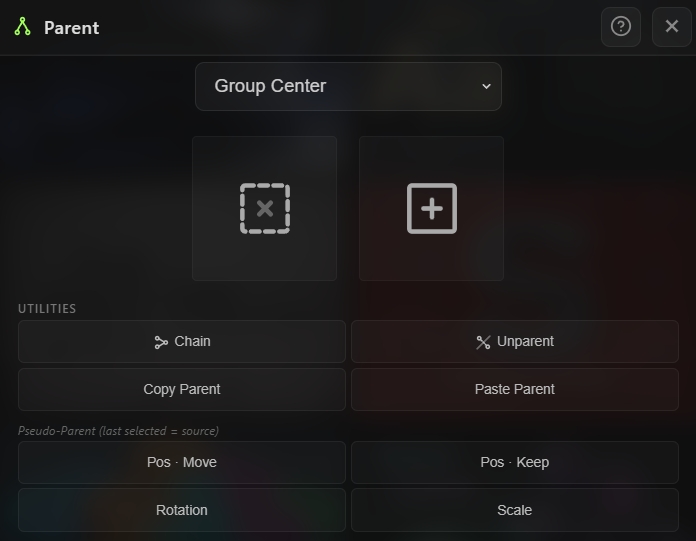
Parent is a complete parenting toolkit for After Effects that goes far beyond AE's built-in pickwhip. Create parent nulls or guide rectangles positioned at the group center, comp center, first layer, or per-layer in one click. Chain layers together in selection order, unparent without any visual jump, copy and paste parent assignments between layers, and — most powerfully — link only specific transform channels (position, rotation, or scale) using expression-based pseudo-parenting. A live info panel shows exactly what's selected and what the tool will do, so you always know the result before clicking. All operations respect animated layers and preserve keyframe data.
Features
Parent Null Creation
- One-click creation of a parent null positioned at your chosen reference point
- Four positioning modes via dropdown:
- Null is automatically placed above the topmost selected layer
- Configurable null size (default 100 px) from the settings cog
- All selected layers are parented to the new null in a single action
Guide Rectangle
- Creates a dashed guide rectangle shape layer instead of a null
- Positioned using the same four modes (Group Center, Comp Center, First Layer, Per Layer)
- Pre-configured with Size and Color effect controls for live adjustment
- Automatically flagged as a guide layer so it won't render in exports
- Perfect for visual reference frames without cluttering the comp
Parent Chain
- Chain — Links selected layers in top-to-bottom selection order, so each layer becomes the parent of the next
- Great for building character rigs, compound animations, or cascading hierarchies
- Reports how many layers were successfully chained
Unparent (Keep Transform)
- Unparent — Removes the parent relationship without any visual jump
- Calculates the layer's final world transform and bakes it into its own properties before removing the parent
- Preserves the exact on-screen position, rotation, and scale
- Works on multiple layers at once
Copy & Paste Parent
- Copy Parent — Captures the parent assignment of the first selected layer
- Paste Parent — Applies the captured parent to every selected layer
- Copy shows the name of the captured parent in a toast for confirmation
- Handles the "no parent" case cleanly (clears parent on paste if source had none)
Pseudo-Parenting (Channel-Only Linking)
Instead of full parent relationships, link only specific transform channels via expressions. The last selected layer becomes the source; all other selected layers become followers.
- Pos · Move — Position only. Child snaps to the source's position (visually moves)
- Pos · Keep — Position only. Child stays in place but follows the source from that point on
- Rotation — Rotation only, linked via expression
- Scale — Scale only, linked via expression
- All expressions use matchName-only access for universal compatibility across every After Effects language
Live Selection Info Panel
- On hover, the panel shows:
- Makes it impossible to guess wrong — you see exactly what the tool will do before clicking
How to Use
Parent Null or Guide Rect
1. Select the layers you want to parent together. 2. Open the Parent tool from the Quick Tools menu or toolbar. 3. Choose a positioning mode from the dropdown: - Group Center for a null at the middle of the selection - Comp Center for a null at comp center - First Layer to center on the first selected layer - Per Layer to create one null per layer 4. Click the Null button to create a parent null, or the Rect button to create a dashed guide rectangle. 5. All selected layers are parented to the new control layer automatically.
Chain Layers
1. Select 2 or more layers in the order you want them chained. 2. Click Chain — each layer becomes the parent of the next in selection order.
Unparent Without Jumping
1. Select one or more parented layers. 2. Click Unparent — the parent is removed but the layers stay exactly where they were on screen.
Copy & Paste Parent
1. Select a layer whose parent you want to replicate. 2. Click Copy Parent — the parent assignment is captured. 3. Select one or more target layers. 4. Click Paste Parent — all targets receive the copied parent assignment.
Pseudo-Parent (Channel-Only)
1. Select 2 or more layers — the last selected will be the source. 2. Click: - Pos · Move to link position (child jumps to source) - Pos · Keep to link position (child stays put but follows from here on) - Rotation to link only rotation - Scale to link only scale 3. Check the Effect Controls / Expressions on each child — the linked property now reads from the source via expression.
Notes
- Pseudo-Parenting is incredibly powerful for rigs where you want a layer to follow only the rotation or scale of another without inheriting its position — impossible with standard AE parenting.
- Pos · Keep is the subtle but crucial option when you want a layer to "attach" to another mid-animation without snapping to its position. Use it for attaching props to hands after a character has already moved.
- Chain respects selection order strictly — click layers in the exact order you want the chain to flow (parent-first).
- Unparent (Keep Transform) is essential when baking out character rigs or preparing layers for export — it removes the parent dependency without any visual drift.
- Copy/Paste Parent is the fastest way to reparent many layers at once — copy from a "template" layer, select everything that should share the same parent, paste.
- The Live Info Panel makes Pseudo-Parenting safe and predictable — always hover first to confirm which layer will be the source.
- Guide rectangles created by this tool are guide-flagged, so they won't appear in renders or exports even though they're visible in the comp viewer.