Palette
A complete color management system for After Effects. Build and organize multiple palettes, generate harmonious color schemes from any base color, extract colors from layers or image files, find and replace colors across your comp, and expression-link layer fills to a shared color hub for live project-wide color updates.
Overview
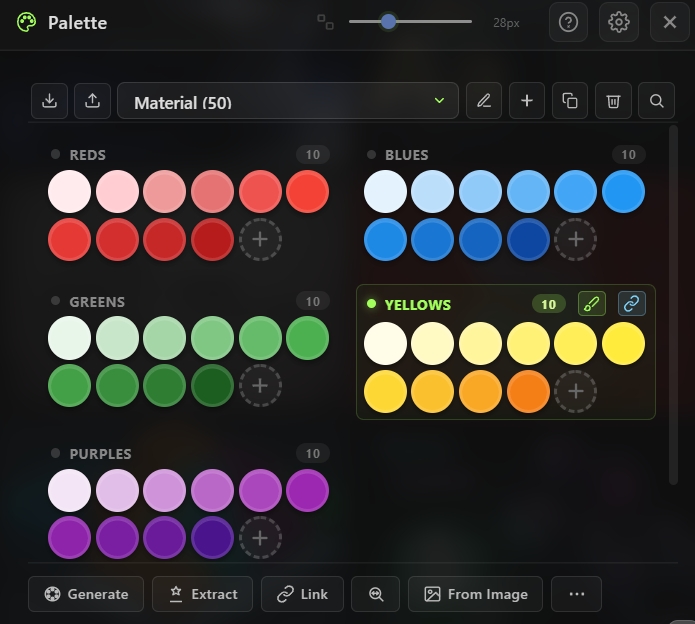
Palette is a complete color management system for After Effects that lives inside your panel. Build multiple palettes with grouped swatches, generate harmonious color schemes from any base color, extract colors from selected layers or from external image files, find and replace colors across your entire composition (including nested pre-comps), and expression-link layer fills to a shared color hub so you can update an entire project's colors from one place. The tool supports three link modes, nine harmony types, multiple view modes, import/export of palettes as JSON, drag-and-drop reordering, group-based organization, and even category tabs for larger libraries. Every feature is built for real production workflows — from quick one-off color picks to rebranding an entire project's color system in one click.
Features
Multi-Palette System
- Create unlimited palettes and switch between them via dropdown or tab strip
- Rename, duplicate, or delete any palette
- Groups within palettes — organize swatches into named groups (e.g., "Primary", "Accents", "Backgrounds")
- Active palette and active group are remembered between sessions
- Supports hundreds of palettes — ideal for brand libraries across multiple projects
Color Harmony Generator
Generate a complete palette from a single base color with nine harmony types:
- Analogous — Adjacent hues within a spread angle
- Monochromatic — Same hue with varying lightness
- Triad — Three hues spaced 120° apart
- Complementary — Opposite hue (180°)
- Split Complementary — Base + two hues around the complement
- Square — Four hues spaced 90° apart
- Compound — Base plus analogous variations of its complement
- Shades — Same hue from dark to light
- Custom — Freely drag color markers anywhere on the wheel
- Adjustable spread (hue offset) and range (lightness span) per harmony type
- Live preview as you change the base color or harmony parameters
Color Extraction
Multiple ways to pull colors into your palette:
- From Layer(s) — Extract all fill and stroke colors from selected layers automatically
- From Image File — Load an image file and extract its dominant colors
- From Text — Paste CSS, hex lists, JSON color arrays, or other text snippets to parse colors automatically
- Eyedropper (per swatch) — Use AE's native color picker on any swatch
Three Link Modes
- Off — Clicking a swatch applies the color directly to selected layers (standard)
- On Layer — Clicking a swatch adds a Color Control effect to the selected layer and expression-links the layer's fill to it (self-contained, perfect for per-layer control)
- External Hub — Clicking a swatch links the selected layer to a slot on a shared Color Hub layer, so multiple layers can share the same color source (rebranding-ready)
- Cycle between modes with a single click on the link button
- Unlink button to remove expression links from selected layers
Color Hub System
- Sync to Hub — Write every swatch in the active palette to the Color Hub layer (creates the hub if it doesn't exist)
- Pull from Hub — Replace your palette's swatches with the current Color Hub colors (great for capturing production color changes back into the panel)
- Per-palette hub — Optional mode that creates a separate hub layer per palette, so different palettes get isolated color systems
- Configurable hub name for clean layer organization
Find and Replace Colors
Powerful comp-wide color operations:
- Find and Replace — Change every instance of one color to another across your selection or entire comp
- Find and Swap — Swap two colors bidirectionally everywhere they appear
- Walk into pre-comps option — Automatically dives into nested compositions and updates colors there too
- Perfect for rebranding, color correction, and production consistency passes
Multiple View Modes
- Wheel — Circular color wheel layout (classic)
- Compact — Dense grid for maximum swatches per pixel
- Single — One row for small palettes
- Separators — Groups visually separated
- Stacked — Vertical stack with group headers
- Dropdown — Dropdown selector for category switching
- Tabs — Horizontal category tab strip for large libraries
Palette Import / Export
- Export — Save any palette as a
.jsonfile for backup or sharing - Import — Load
.jsonpalettes with options to: - Cross-machine portable — share palette libraries with your team
Drag-and-Drop Organization
- Rearrange swatches within a group by dragging
- Move swatches between groups by dragging across group boundaries
- Rearrange palette tabs by dragging
- Move swatches between palettes (optional)
Built-in Starter Palettes
Ships with a curated set of starter palettes to kickstart your library — can be hidden from settings if you only want your own palettes.
Additional Tools
- Search — Find colors by hex value or group name
- Randomize — Generate a random palette instantly
- Group-level apply — Apply an entire color group to selected layers in one click
- Group-level link — Link selected layers to an entire color group at once
- Group-level generate — Regenerate just one group with a new harmony
How to Use
Create Your First Palette
1. Open the Palette tool from the Quick Tools menu or toolbar. 2. Click the New button to create an empty palette, or use a built-in starter. 3. Rename it via the Rename button.
Generate a Harmony
1. Click the Generate button (sparkle icon). 2. Pick a base color by clicking the base swatch. 3. Choose a harmony type from the dropdown (Analogous, Monochromatic, Triad, etc.). 4. Set the count (number of swatches) and adjust spread or range as needed. 5. Click Apply — the generated colors replace or append to your palette.
Extract Colors from Layers
1. Select one or more layers in your composition. 2. Click the Extract button in the Palette tool. 3. All unique fill and stroke colors from the selection are added to the active palette.
Apply Colors to Layers
1. Select target layers in your timeline. 2. Click any swatch in the rail to apply its color. 3. Clicking multiple swatches in sequence applies them to the selection in order.
Use Link Modes
1. Select a layer whose color you want to link. 2. Click the Link button to cycle to your desired mode: - On Layer — Adds a Color Control effect on the layer - Hub — Links to the shared Color Hub layer 3. Click a swatch — the layer's color is now expression-linked to the swatch. 4. To unlink later, select the layer and click the Unlink button.
Sync Everything to the Hub
1. Build your palette. 2. Click Sync to Hub — every swatch is written to the Color Hub layer as a separate color slot. 3. Use Hub link mode to link layers to those slots. 4. Update the hub colors and every linked layer updates automatically.
Find and Replace Colors
1. Click the Find and Replace button. 2. Pick the color you want to find (or use the eyedropper). 3. Pick the replacement color. 4. Choose whether to walk into pre-comps. 5. Click Replace — every instance is updated across the selection or comp.
Import / Export Palettes
1. Click Export to save the current palette as a .json file.
2. Click Import to load a .json file with the choice to create a new palette, merge, or replace.
Notes
- External Hub mode is the most powerful feature for large projects — link every branded color on every layer to a single Color Hub layer, and changing the hub updates the entire project in one action. Essential for rebranding workflows.
- Per-palette hub mode keeps different palettes isolated, so you can have a "Brand A" hub and a "Brand B" hub in the same comp without cross-contamination.
- Harmony generator is a design accelerator — pick a base color, try different harmonies, and let the tool give you a cohesive starting palette in seconds.
- Extract from Layers is the fastest way to capture an existing project's color scheme and turn it into a reusable palette.
- Find and Replace with pre-comp walk is the nuclear option for color consistency — it dives into every nested comp and updates colors everywhere, making it trivial to fix a color accident discovered late in production.
- Groups within palettes are ideal for organized brand libraries — create groups like "Primary", "Secondary", "Neutrals", "Accents" for each brand palette.
- Text import is a hidden gem — paste any CSS file, JSON color object, Tailwind config, or comma-separated hex list, and the tool auto-parses the colors.
- Drag-and-drop makes reorganizing fast — drag swatches between groups, between palettes, or reorder them freely.
- The tool ships with built-in starter palettes to help you begin — disable them from settings if you prefer a clean slate.
- Link expressions use matchName-only property access, so linked colors work correctly across every After Effects language and version.