Notes
A complete notepad and to-do manager inside your After Effects panel. Write rich-text notes with a full WYSIWYG editor, organize them by category, build simple or priority task lists, and never leave AE to jot down ideas, research, or project reminders — everything stays with you across sessions.
Overview
Notes is a complete notepad and to-do manager built right into your After Effects panel. Write rich-text notes with a full WYSIWYG editor, organize them into custom categories, and build multiple simple or priority-based task lists — all without ever leaving AE. Notes persist across sessions, projects, and AE restarts, so your ideas, research, reminders, and production checklists are always one click away. The editor supports headings, bold, italic, underline, strikethrough, lists, blockquotes, code blocks, text colors, links, and dividers. The to-do system supports multiple independent lists, each with its own tasks, completion stats, and optional priority ordering.
Features
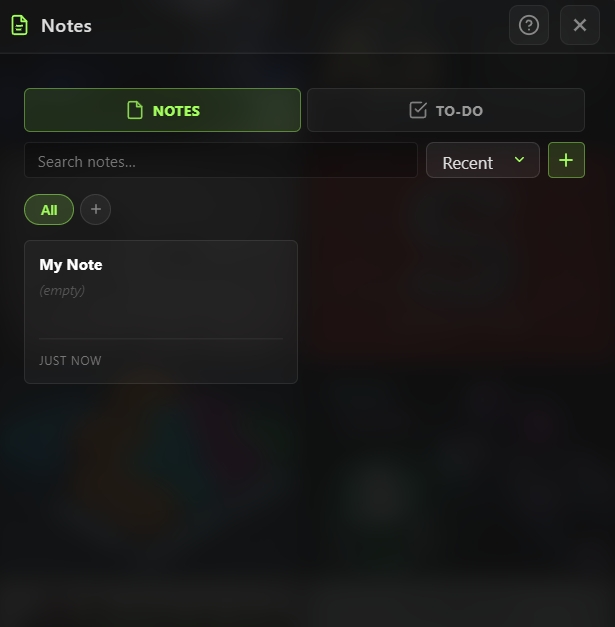
Two Tabs: Notes & To-Do
- Notes tab — Rich-text note editor with card-based home view
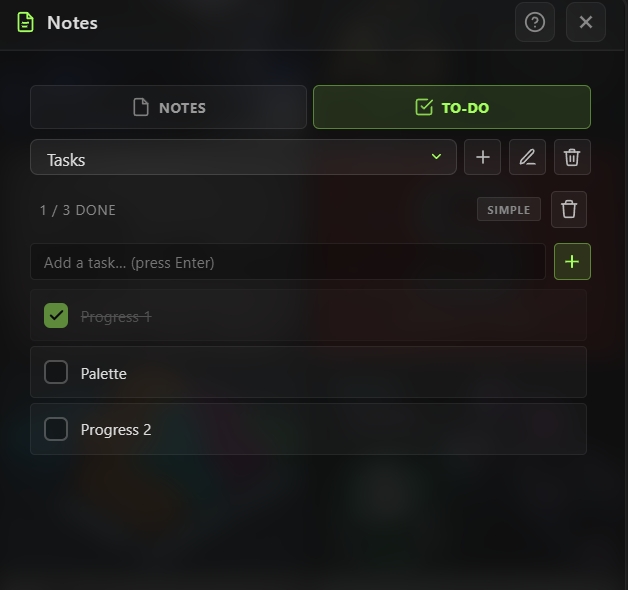
- To-Do tab — Multi-list task manager with simple and priority modes
- Switch between tabs with a single click in the tool header
Rich-Text Note Editor
Full WYSIWYG editor powered by native browser commands:
- Headings — H1, H2, H3, and Paragraph
- Text formatting — Bold, Italic, Underline, Strikethrough
- Text color picker — Apply custom colors to selected text
- Lists — Bullet and numbered
- Blockquotes — For callouts and quotes
- Code blocks — Inline
blocks for technical notes - Links — Insert hyperlinks via prompt
- Horizontal rule — Dividers for visual separation
- Clear formatting — Strip all formatting from selected text
Note Organization
- Card grid home view — All notes displayed as compact cards
- Search — Live search filters notes by title or body
- Custom categories — Create your own category chips to tag notes
- Category filter chips — Click a category to show only its notes
- Category manager — Rename, delete, or reorganize categories from a dedicated dialog
- Note metadata — Each note tracks creation and last-updated timestamps
To-Do Lists
Multi-list task management:
- Multiple independent lists — Create as many lists as you need
- Two list types:
- Quick add — Type a task and press Enter
- Progress stats — Live display of completed vs. total tasks
- Clear completed — One-click cleanup of finished tasks
- Rename / delete lists — Full list management from the header
- List switcher — Dropdown to jump between lists instantly
Persistent Storage
- Everything stored in the panel's local storage — no cloud, no account
- Survives AE restarts, project switches, and panel reloads
- Category and list state (active filter, active list) is remembered
Smart Editor Behaviors
- Paste as plain text — Automatically strips formatting from pasted content to keep notes clean
- Code block placeholder — New code blocks come pre-filled with "code here" text ready to replace
- Color picker selection preservation — Selecting a color doesn't lose the text selection, so the color applies correctly
- Backward compatibility — Old markdown-format notes from earlier versions still render correctly
How to Use
Create a Note
1. Open the Notes tool from the Quick Tools menu or toolbar. 2. Make sure you're on the Notes tab (default). 3. Click the + button to create a new note. 4. Enter a title and body using the WYSIWYG toolbar: - Click H1, H2, H3 to format headings - Bold, Italic, Underline, Strikethrough for inline styles - Bullet or numbered lists, blockquotes, code blocks - Color picker for text color - Link, divider, clear formatting 5. (Optional) Select a category from the dropdown at the top. 6. Click Save to store the note.
Organize with Categories
1. From the Notes home view, click the + chip in the category bar. 2. Enter a name for the new category. 3. Assign notes to categories when creating or editing them. 4. Click any category chip to filter the home view to just that category. 5. Click the Manage button to rename or delete categories from a dedicated dialog.
Search Notes
1. From the Notes home view, type into the search field. 2. The card grid filters live as you type — matches on title and body. 3. Combine search with category filters for precise results.
Create a To-Do List
1. Click the To-Do tab in the tool header. 2. Click the + button next to the list dropdown. 3. Enter a name and choose Simple or Priority type. 4. Click Create — the new list becomes active.
Manage Tasks
1. With a to-do list active, type a task in the input field and press Enter. 2. Click the checkbox next to a task to mark it done. 3. Click the × next to a task to delete it. 4. For priority lists, assign a priority level to each task from its context menu. 5. Click Clear Completed in the stats row to remove all finished tasks at once.
Notes
- Notes live in your browser's local storage — they're private to this panel on this machine. For backups or sync, copy important notes elsewhere manually.
- Categories are the simplest way to keep a large note library organized — use them for project names, topic areas (research, references, ideas), or workflow stages.
- Simple vs. Priority to-do lists — use Simple for quick checklists (e.g., "things to do today") and Priority for structured task management (e.g., "project phase 1 deliverables").
- The WYSIWYG editor uses native browser commands, which means you get familiar keyboard shortcuts: Ctrl+B for bold, Ctrl+I for italic, Ctrl+U for underline.
- Paste from anywhere (web, email, document) — the editor automatically strips formatting so your notes stay clean and consistent.
- Multiple to-do lists shine for project management — create one list per project and switch between them as you move between composites.
- The Notes system was designed to replace switching apps — whenever you'd normally open a sticky note, a browser tab, or a text editor just to jot something down, use this instead and keep your focus in AE.