Lines Connection
Create procedural lines between selected layers. Choose connection graphs (Star, Chain, K-Nearest, Random, etc.), line styles (Arc/Wavy/Zigzag…), and control color, distance-based fading, and optional trim per layer—all organized automatically into grouped connections.
Overview
Lines Connection generates procedural lines between selected layers (including Lights) using a single clean Shape Layer setup.
Pick how layers connect (star, chain, nearest neighbors, etc.), choose a line style (straight, arc, curve, wavy, zigzag, spring, rope, elbow), set up drivers (distance, opacity, scale) to control behavior, and apply effects to opacity, stroke width, and color — all while keeping everything organized in one grouped structure.
Features
- Connect AV layers and Lights using one Shape Layer
- 6 connection graphs
- 8 line styles
- Color modes
- 3 Drivers (combinable)
- Apply To
- Optional Trim controls
- Auto-resolves duplicate layer names
- Outputs a single Shape Layer: "Lines Connection —
" with one group per connection
How to Use
1. Select at least two layers (AV or Light).
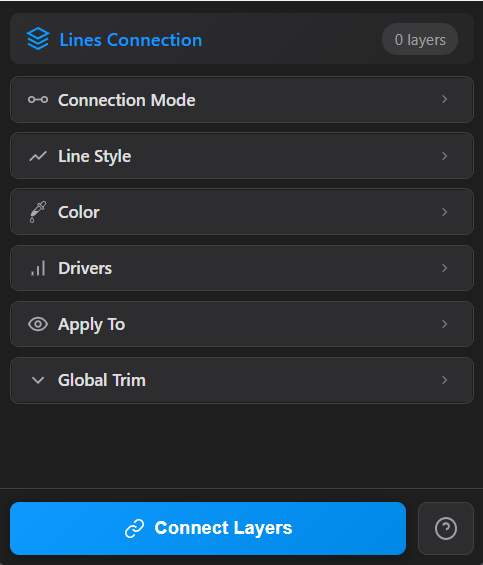
2. Choose a Connection mode: - Star / All-to-all / Chain / Loop / Random / K-Nearest - Random: set Max lines per node - K-Nearest: set K
3. Choose a Line Style: - Straight - Arc → Curvature - Curve → Curve Intensity / Curve Flip - Wavy → Amplitude / Segments - Zigzag → Amplitude / Segments - Spring → Amplitude / Segments / Spring Ellipse - Rope → Sag Strength / Wiggle / Bend Distance - Elbow → Bias
4. Choose a Color mode: - Single / Gradient (Between) / Gradient (Along) / Random Palette - For Gradient (Along): use Reverse Gradient and adjust via “Gradient Colors”.
5. (Optional) Enable Drivers: - Distance / Opacity / Scale - Combine Mode: Multiply / Min / Max / Average
6. (Optional) Choose Apply To: - Opacity / Stroke Width / Color - For Color: set Fade To Color
7. (Optional) Enable Trim: - Choose Side (Start/End) - Enable Trim for Each Layer to add “LC Trim %” per target layer
8. Click Connect to generate “Lines Connection —
Notes
- For large selections, K-Nearest is usually cleaner and faster than All-to-all.
- Multiple drivers can be combined for complex behaviors — use Multiply for strict control, Max for lenient results.
- Color fade works with Single, Gradient Between, and Fixed palette modes (not Gradient Along).
- If you rename layers later, the tool’s name-resolving helps keep connections stable and readable.