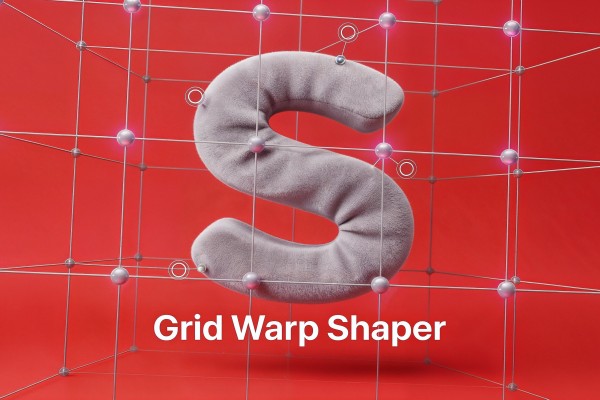
Grid Warp Shaper
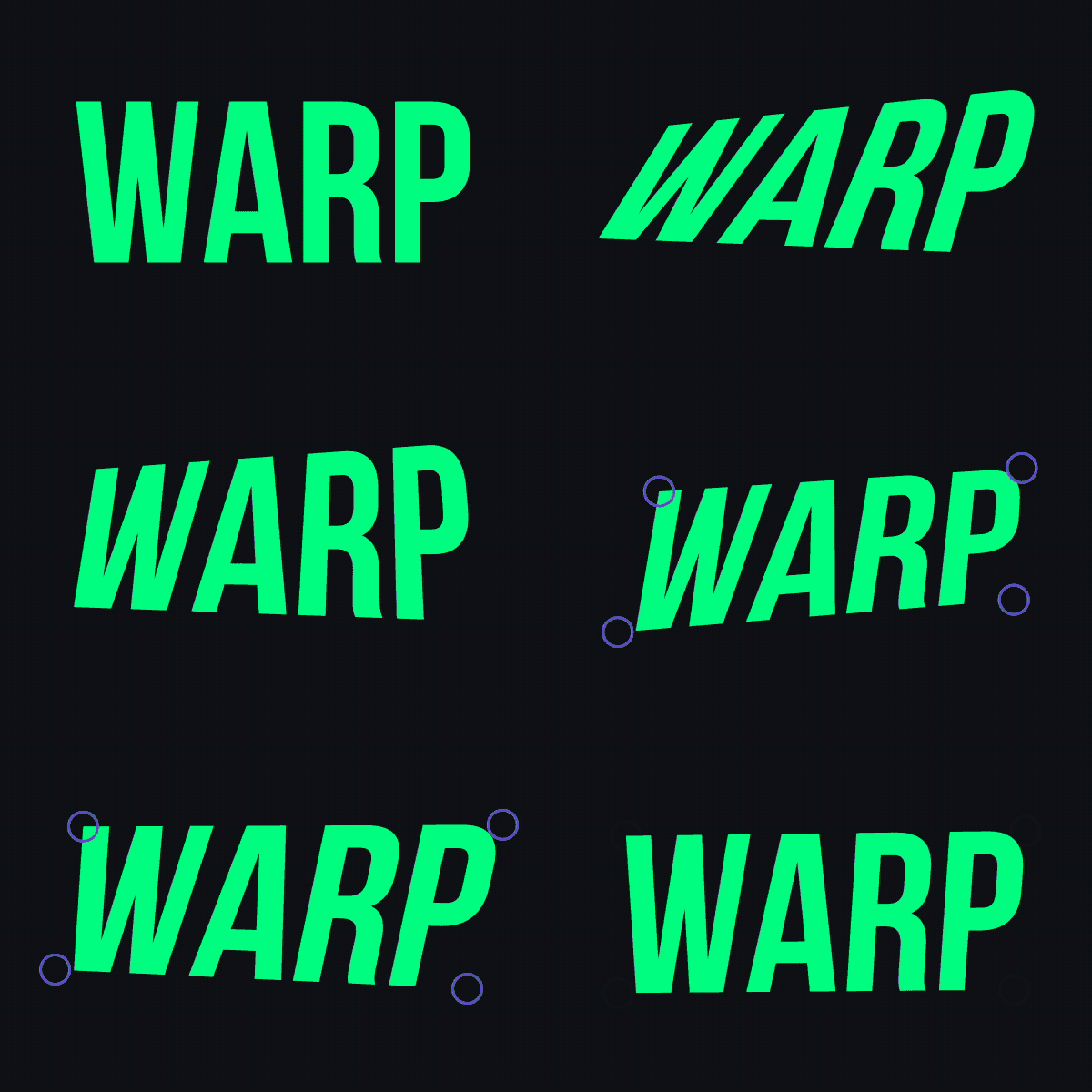
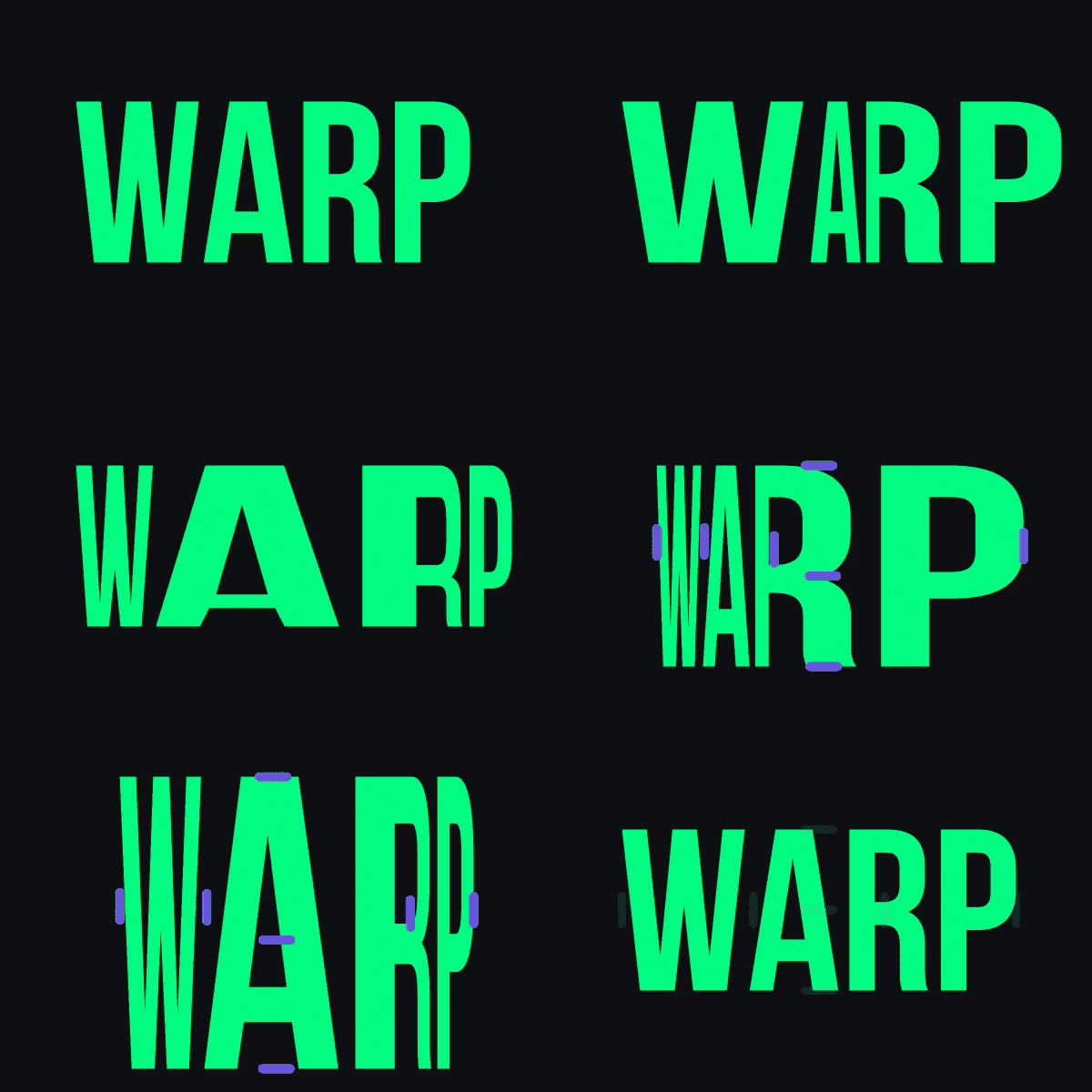
Apply grid-based mesh deformation to any Shape Layer using intuitive control points or line handles. Create flexible warping grids from 1×1 (simple 4-corner warp) up to 8×8 for precise control. Two control modes: Point Controls for individual vertex manipulation, or Line Controls for row/column-based adjustments.
Overview
Grid Warp Shaper applies a grid-based mesh deformation system to any Shape Layer, letting you warp paths using simple, visual controls. Build anything from a 1×1 corner-pin style warp to an 8×8 detailed mesh, then deform your shapes by moving control handles. Controls stay parented to the main layer, so you can still move, scale, and rotate freely while the warp follows perfectly.
Features
- Grid/mesh deformation for Shape Layers with editable paths
- Grid sizes from 1×1 up to 8×8
- Two control modes:
- Custom control-handle color via color swatch
- Control shapes are parented to the main layer (transforms follow automatically)
- Optional grid visualization via Enable Grid Frame effect
- One-click cleanup with Remove
How to Use
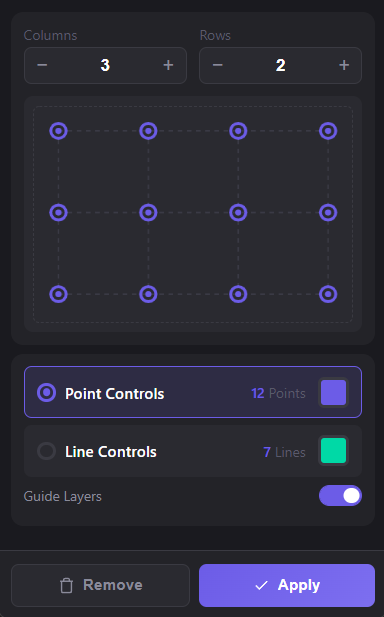
1. Select exactly ONE Shape Layer with editable paths. 2. Set grid dimensions: - Columns (1–8) - Rows (1–8) Use 1×1 for simple corner warping, higher values for finer control. 3. Choose Control Type: - Point Controls: creates a handle at each grid intersection. - Line Controls: creates row handles + column handles for uniform movement. 4. Pick a color for the control shapes using the color swatch. 5. Enable Guide Layers (recommended) to keep controls from rendering. 6. Click Apply. The tool creates: - Control Shape Layers (named GW Point R# C# or GW Row/Col #) parented to your layer - A Grid Warp group inside the selected layer’s contents 7. Move the control shapes to deform your paths. You can still move/scale/rotate the main layer—controls follow automatically. 8. (Optional) Enable Enable Grid Frame on the layer to visualize the grid. Adjust Grid Line Width and Grid Line Color as needed. 9. To remove everything: select the Shape Layer and click Remove.
Notes
- Works best with closed paths.
- Use Line Controls when you want smooth, structured deformation (like bending fabric or panels).
- Use Point Controls for detailed, sculpted warps (like face/character shape tweaks).