Font Animator
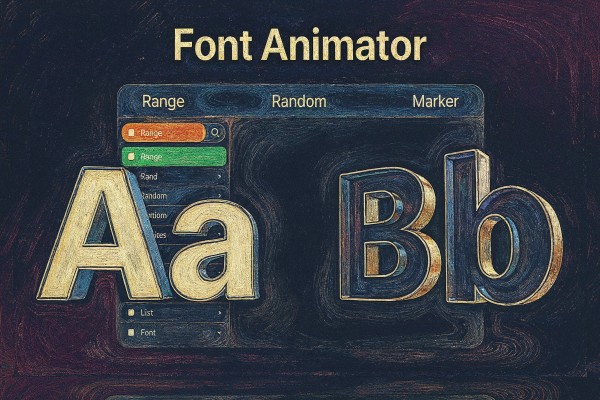
Apply multiple fonts inside a single text layer using Range, Random, or Marker modes. Control exactly where fonts change (by characters/words/lines), randomize font distribution with full styling controls, or switch fonts over time via markers. Includes include/exclude character filters and on-layer controls for easy keyframing.
Overview
Font Animator lets you use multiple fonts inside a single After Effects text layer—without splitting text into multiple layers. Choose between Range, Random, Replace, or Marker modes to apply fonts to specific parts of your text, randomize font distribution, swap text content with new fonts, or switch fonts over time using timeline markers. It also includes smart Include/Exclude filters and on-layer controls ready for keyframe animation.

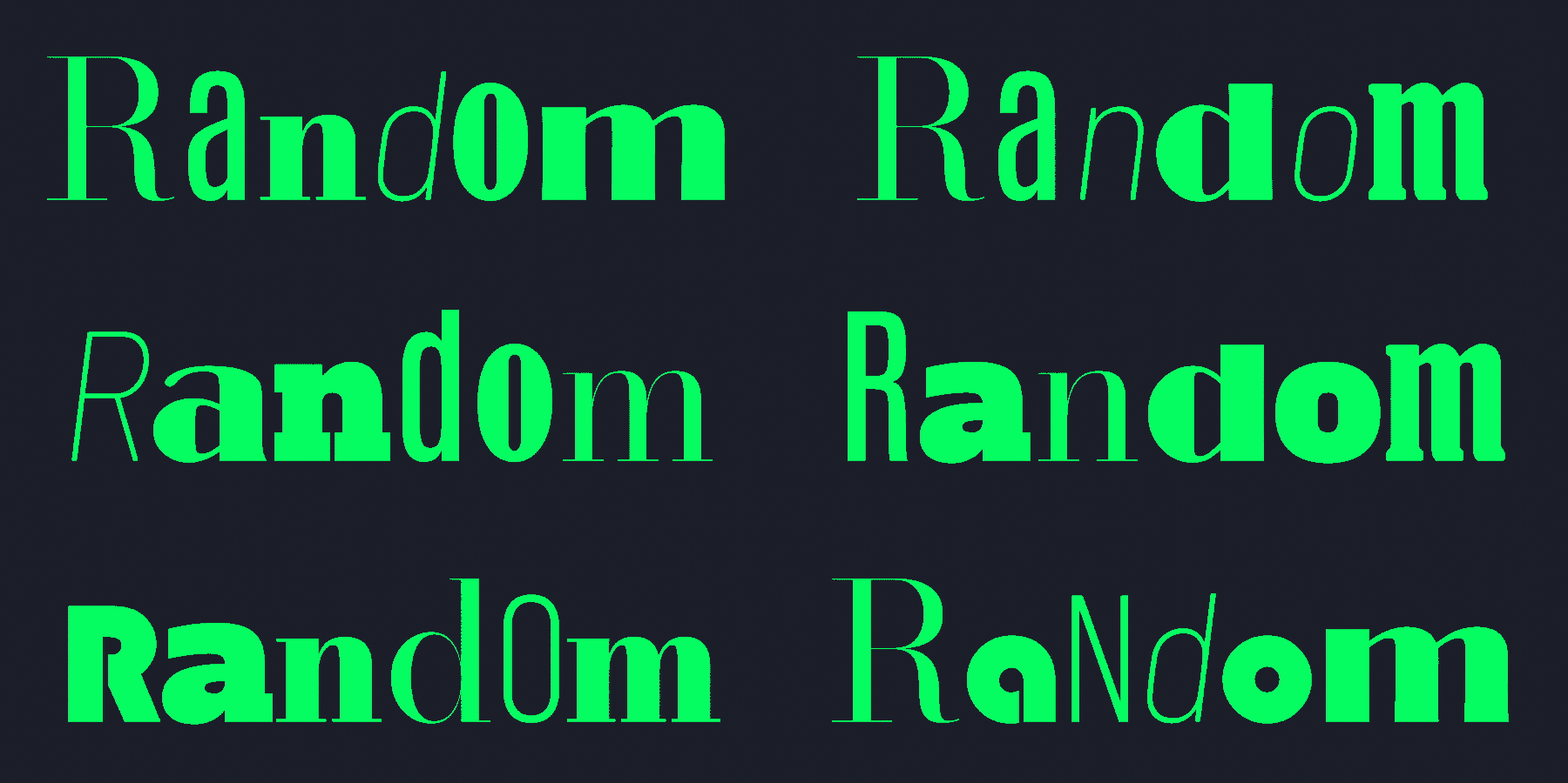
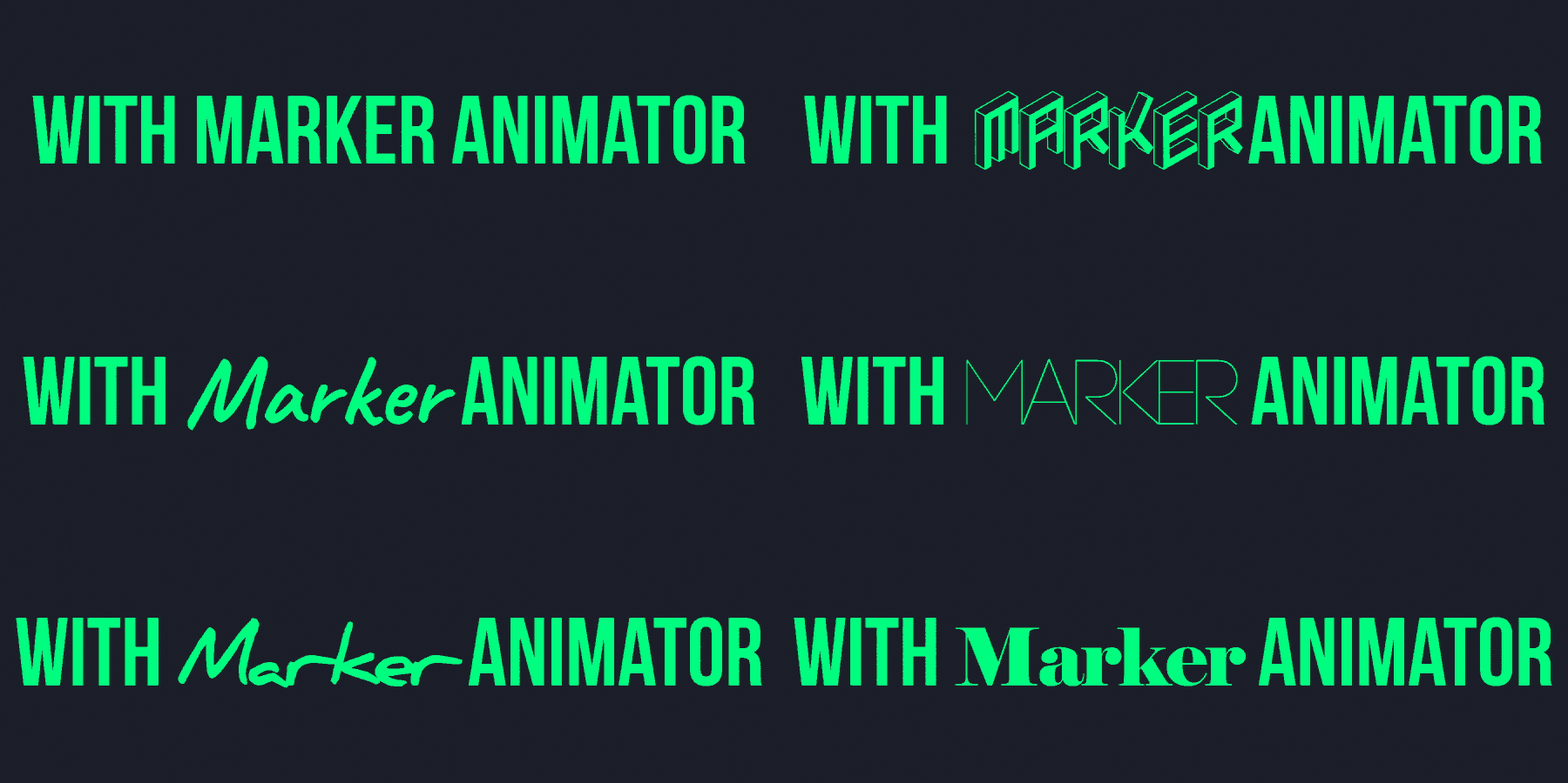
Features
- Apply multiple fonts in one text layer
- 4 powerful modes:
- Include/Exclude filters (characters/words) in Range, Random, and Marker modes
- Per-font styling controls (like Size and Tracking) where available
- On-layer settings designed for easy keyframe animation
- One-click cleanup with Remove All
How to Use
1. Select exactly one Text layer. 2. Choose a tab: Range, Random, Replace, or Marker.
Range Tab
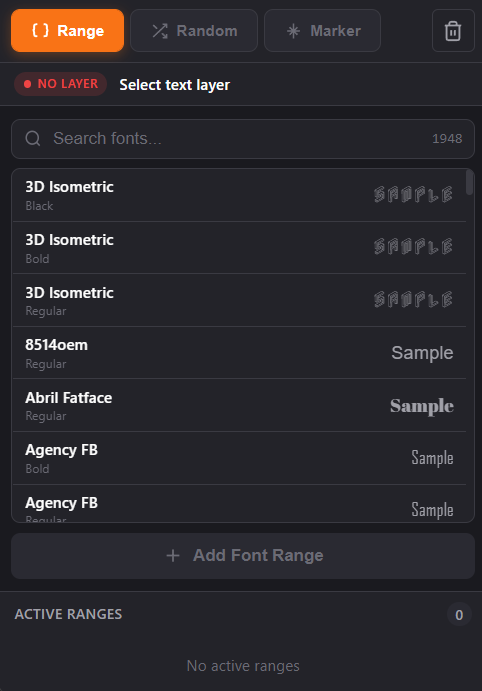
1. Search and select a font from the list. 2. Click Apply Font Range to add it. 3. In Effect Controls, adjust: - Start/End (Index or Percentage) - Based On (Characters / Words / Lines) - Offset 4. Higher-numbered ranges override lower ones. 5. Use the Remove button next to a range to delete it.
Random Tab
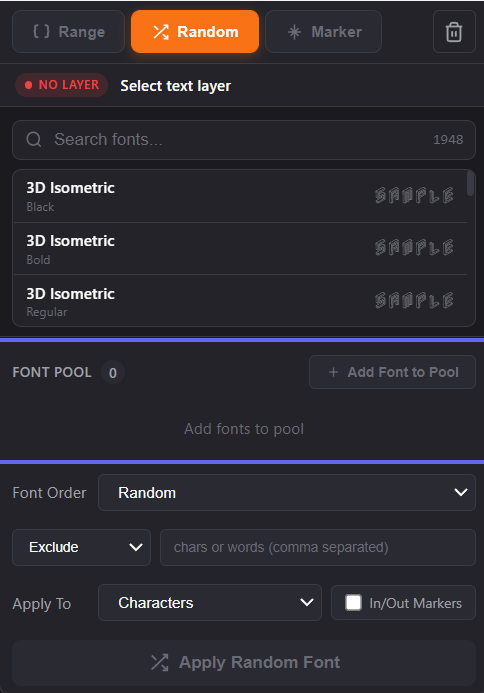
1. Add fonts to the Pool (no consecutive duplicates). 2. Choose order: Random or Sequential. 3. Set Include/Exclude filters for specific characters or words. 4. Adjust per-font Size and Tracking sliders in Effect Controls.
Replace Tab
1. Type your new text in the Replace With box. 2. Enable Change Font to swap the font as well, then pick a font. 3. Choose an Overflow mode for when the original text is longer than the replacement: - Repeat: loops the replacement words to fill the gap - Blank: leaves the extra slots empty - Custom: fills extra slots with a character of your choice 4. Set Align (e.g. Center) to control how Custom characters are distributed. 5. Choose a Position mode: - In-Place: new letters swap in at their existing positions - Shift: new letters slide in as the End Range animates 6. Apply to commit the replacement—stack multiple Replace effects, each with its own text and font.
Marker Tab
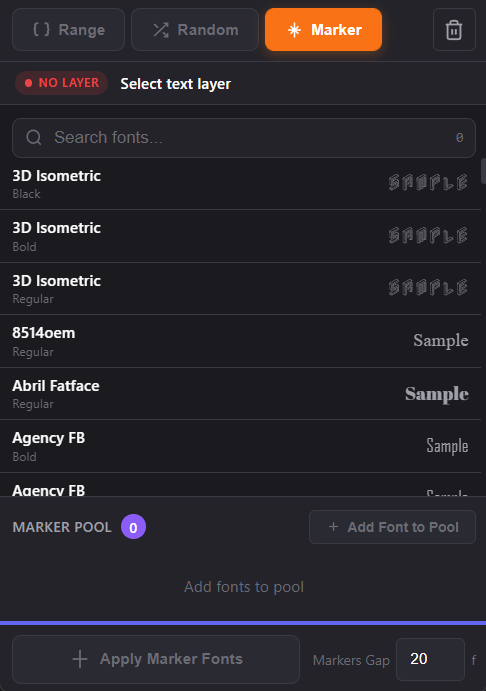
1. Add fonts to the Marker Pool. 2. Set per-font Include/Exclude filters. 3. Adjust Markers Gap (frames between markers). 4. Click Apply Marker Fonts to create numbered markers (0, 1, 2...). - Marker 0 = original text font - Marker 1+ = pool fonts 5. Move markers on the timeline to control when fonts switch.
General
- Click Remove All (top-right) to clear all effects, expressions, and markers.
Notes
- Works only when one Text layer is selected.
- Range stacking matters: later ranges can override earlier ones.
- Replace mode can run multiple times, each swap with its own text and font.
- Marker mode is ideal for font changes synced to beats, cuts, or dialogue timing.