Floor Shadow
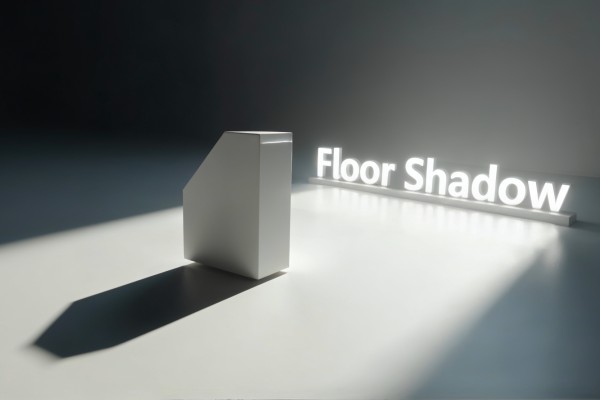
Create realistic floor shadows for any layer in After Effects. Features dynamic light source control that automatically calculates shadow angle and perspective, optional floor plane for precise positioning, customizable shadow softness with blur and feather controls, and tint options.
Overview
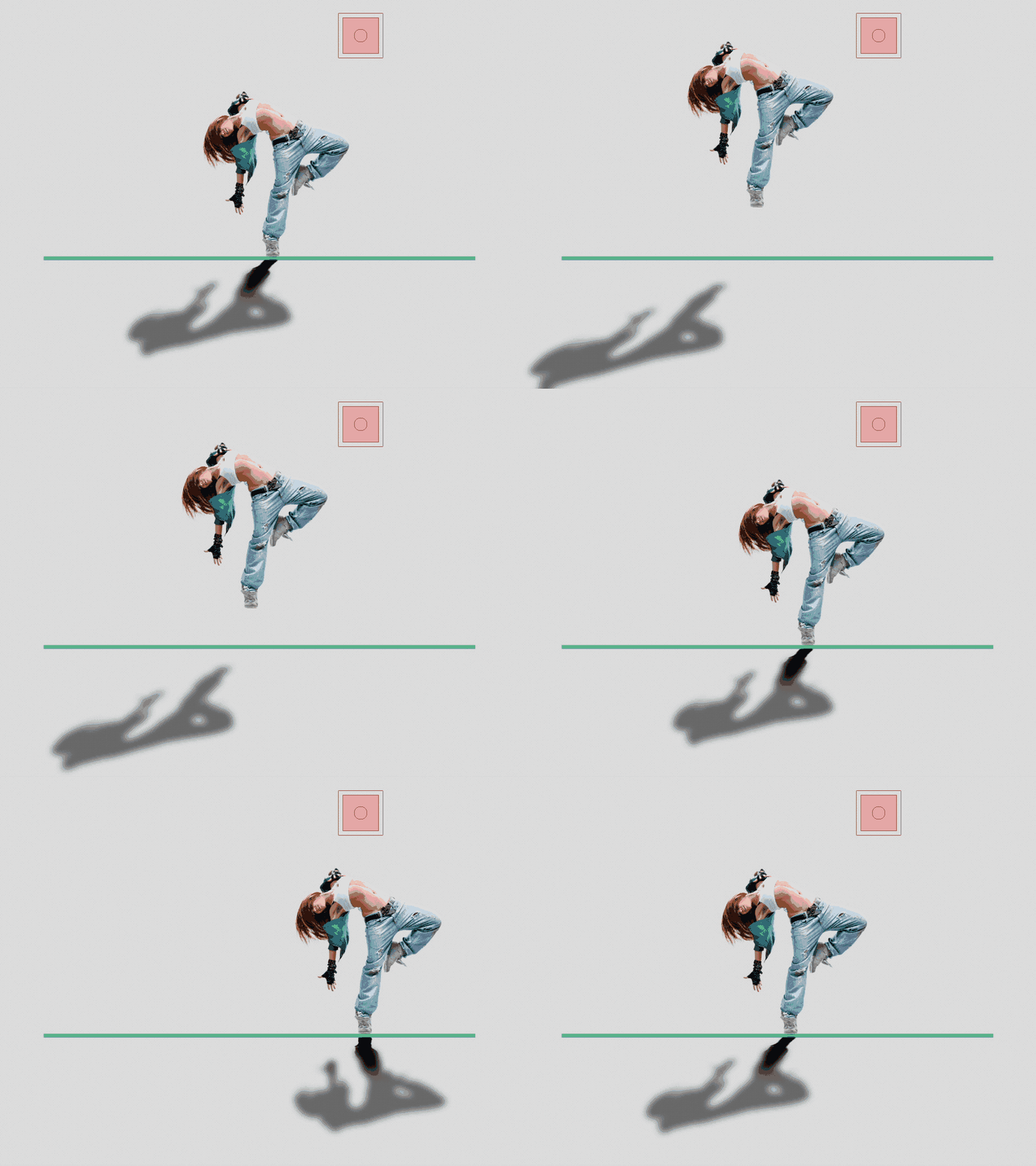
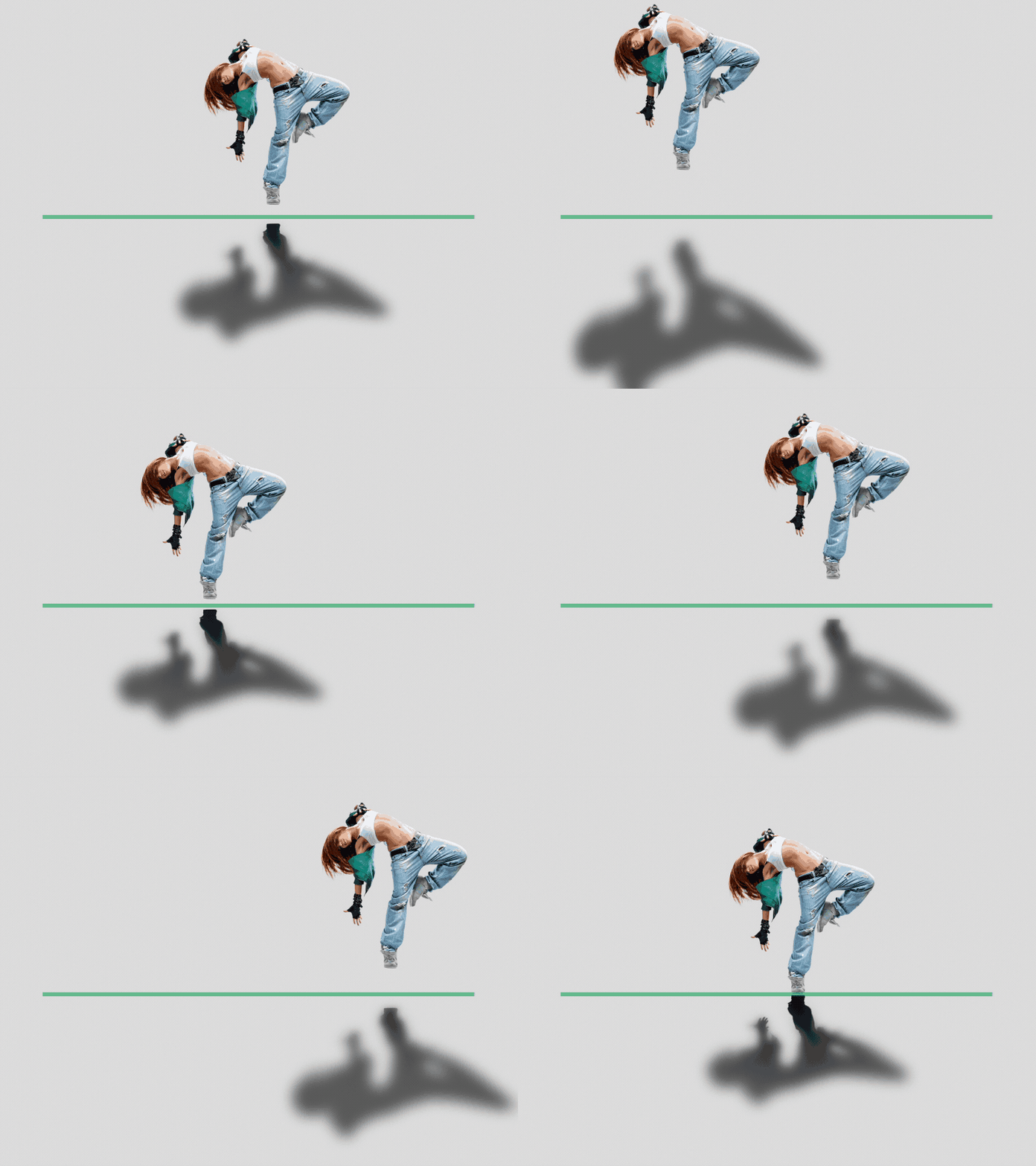
Floor Shadow creates realistic ground/floor shadows for any layer in After Effects. It can use a Dynamic Light Source to automatically calculate shadow direction and perspective, and it can generate an optional Floor Plane guide for precise contact placement. Shadow softness, blur, feather, and tint are fully adjustable from a single settings effect.
Features
- Create realistic floor/ground shadows for any layer
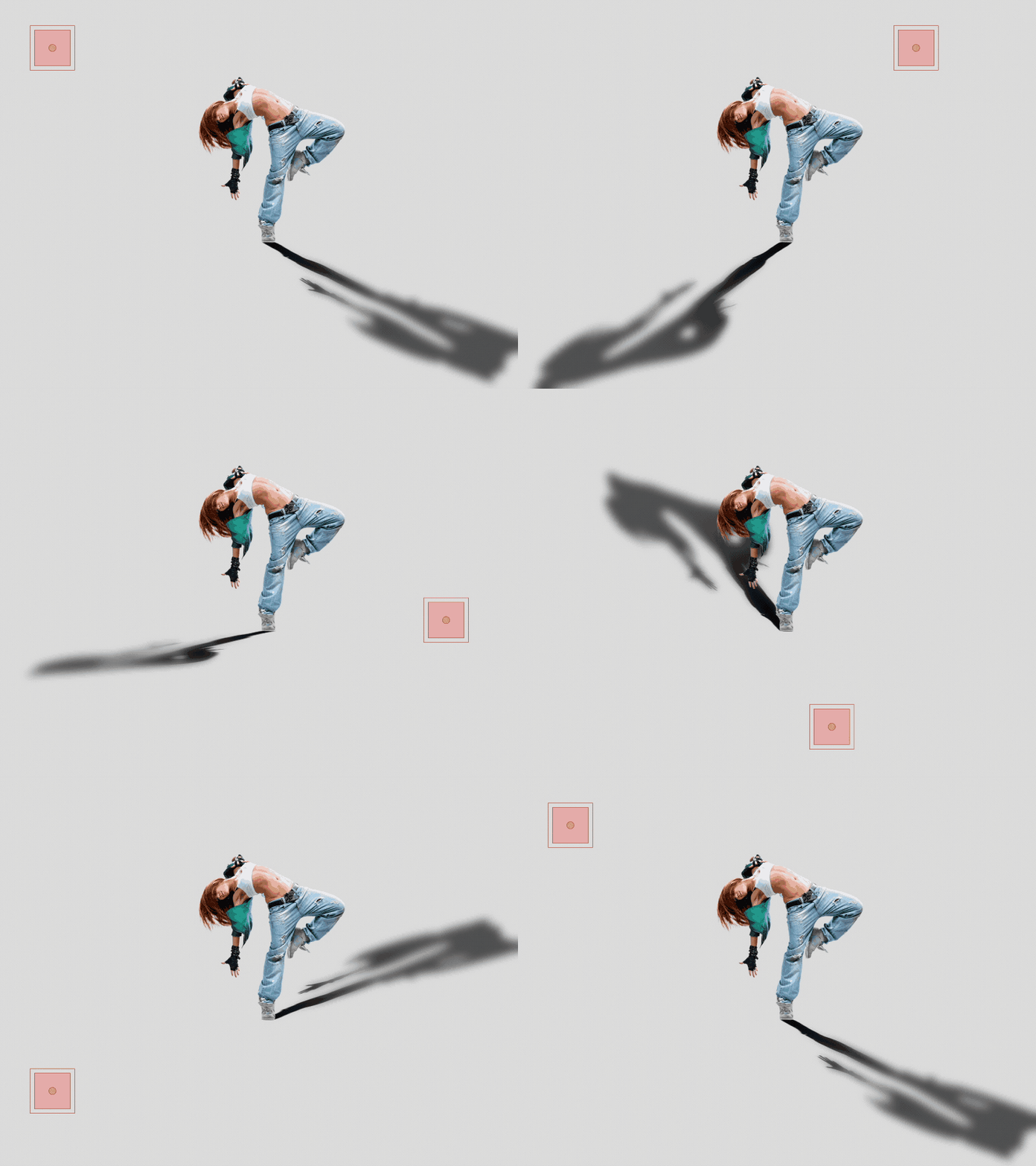
- Dynamic Light Source option:
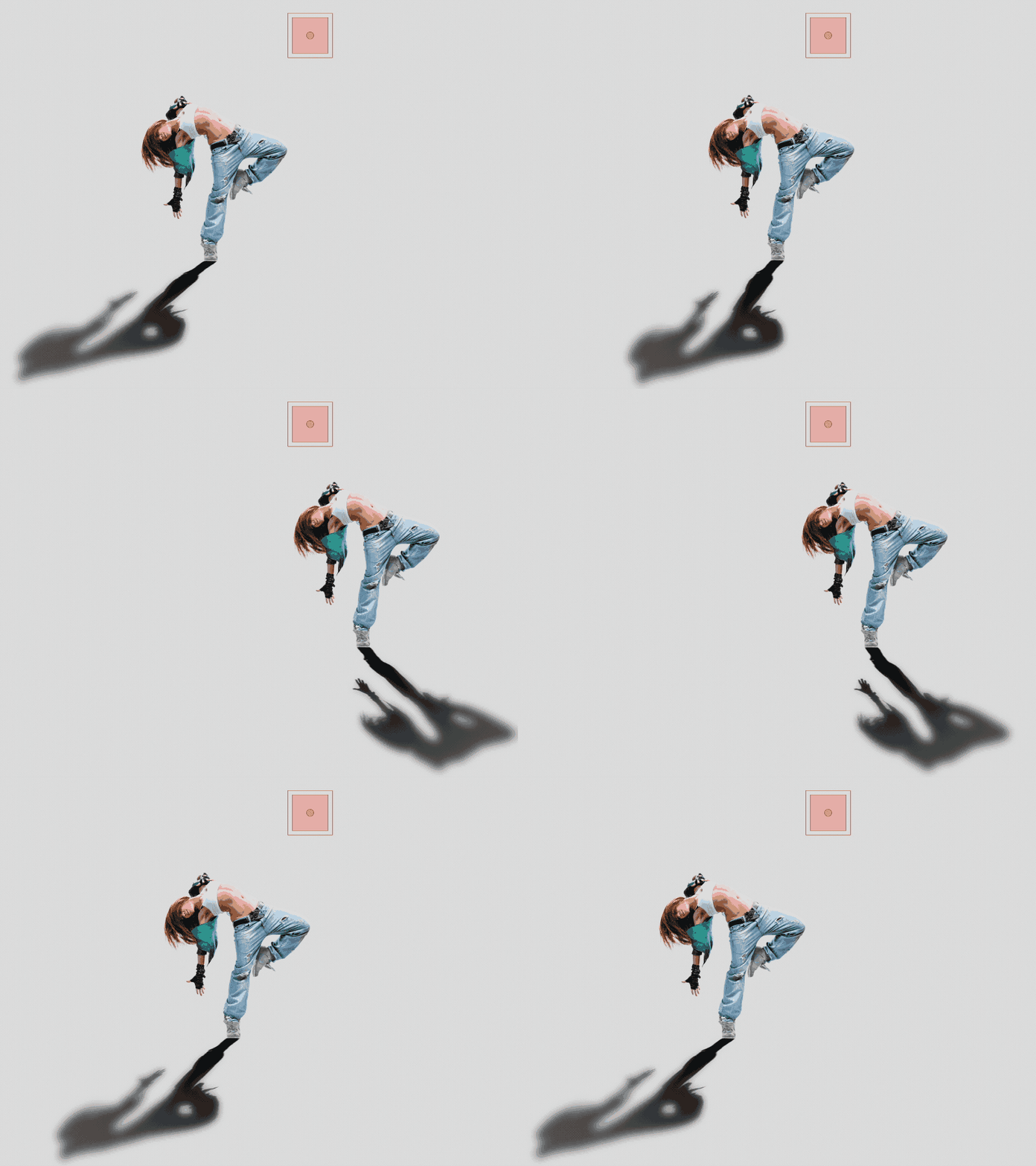
- Optional Floor Layer (floor plane guide) for accurate contact positioning
- Full shadow controls inside "Floor Shadow_Setting":
- Shadow layer automatically follows the original layer’s position
- One-click Remove cleans up shadow, floor guide, and light source layers
How to Use
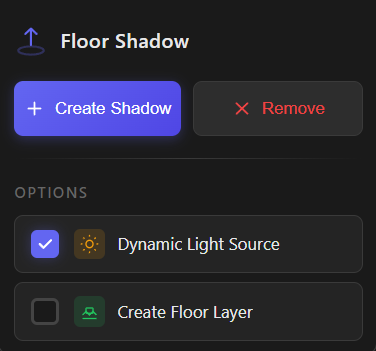
1. Select a layer in your composition. 2. Choose your options: - Dynamic Light Source (recommended) - Create Floor Layer (optional floor plane guide) 3. Click Create Shadow. 4. Select the created shadow layer and adjust settings in "Floor Shadow_Setting": - Direction / Slant - Floor Height - Perspective - Softness / Blur - Tint - Mask Expansion and Feather 5. Move the Dynamic Source layer to change light direction in real time. 6. Move the Floor Layer to adjust where the shadow meets the ground. 7. To remove everything, select any related layer (Shadow, Floor Layer, or Dynamic Source) and click Remove.
Notes
- Use the Floor Layer when you need consistent “contact” placement across multiple shots.
- Dynamic Light Source is ideal for scenes where light direction changes during animation.