Flip Animation
Flip and mirror layer position keyframes with full control over direction, reference point, and animation creation. Supports three flip directions (Horizontal, Vertical, Both) with two reference modes (Comp Center, Current Position). Create reversed keyframe animations with customizable delay and scale
Overview
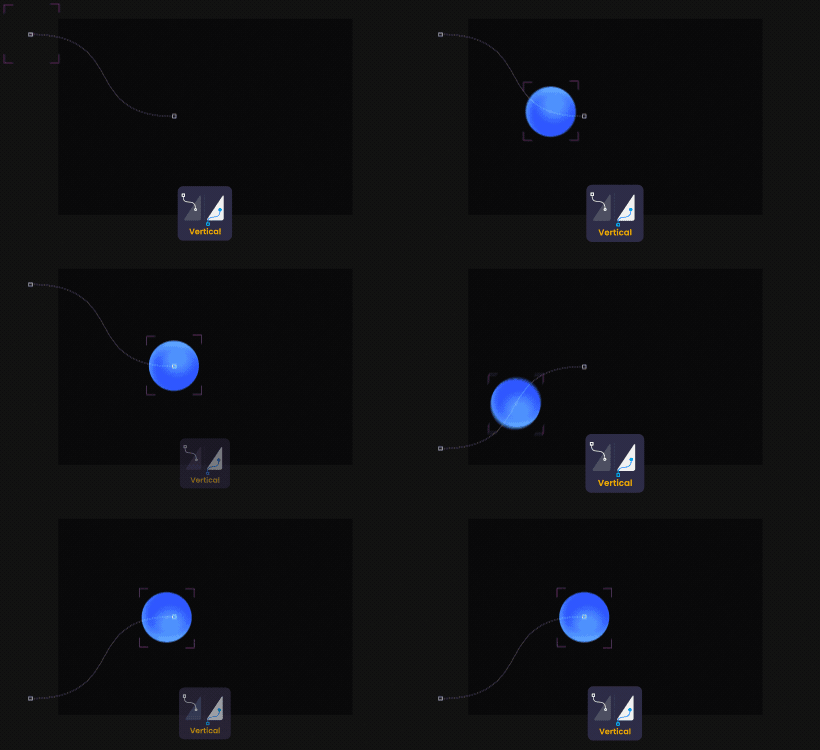
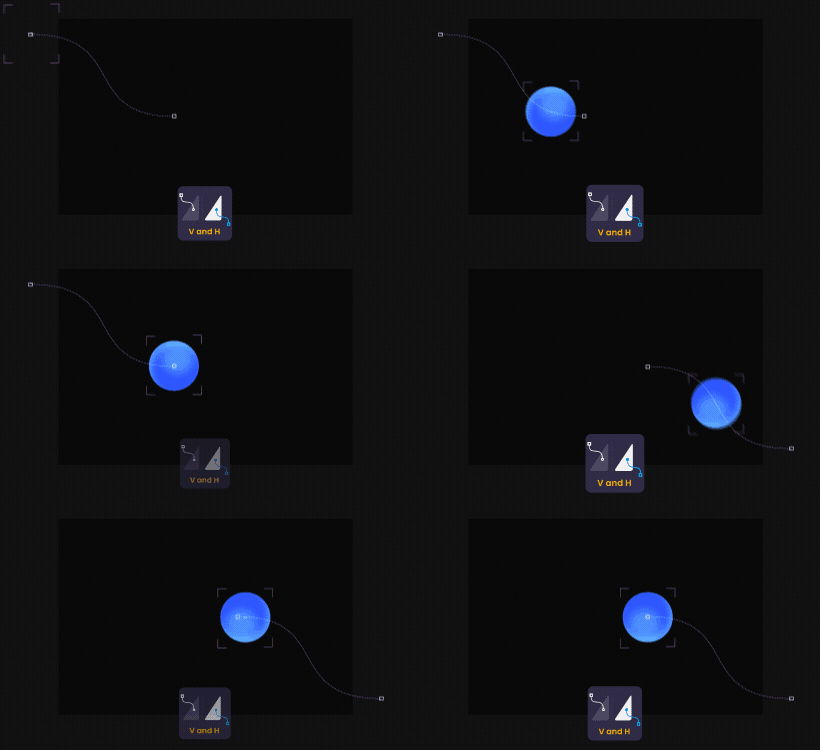
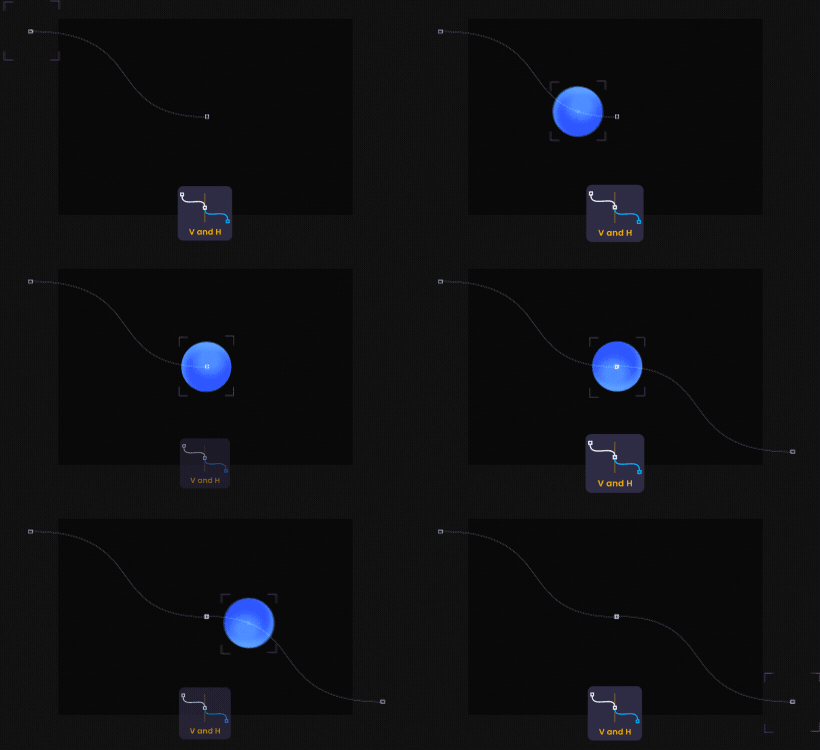
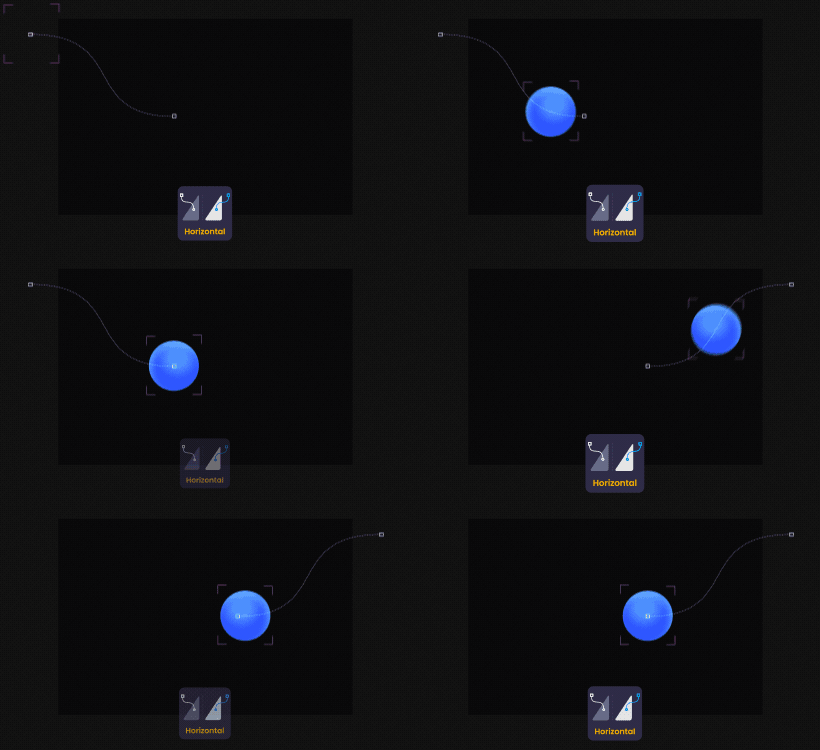
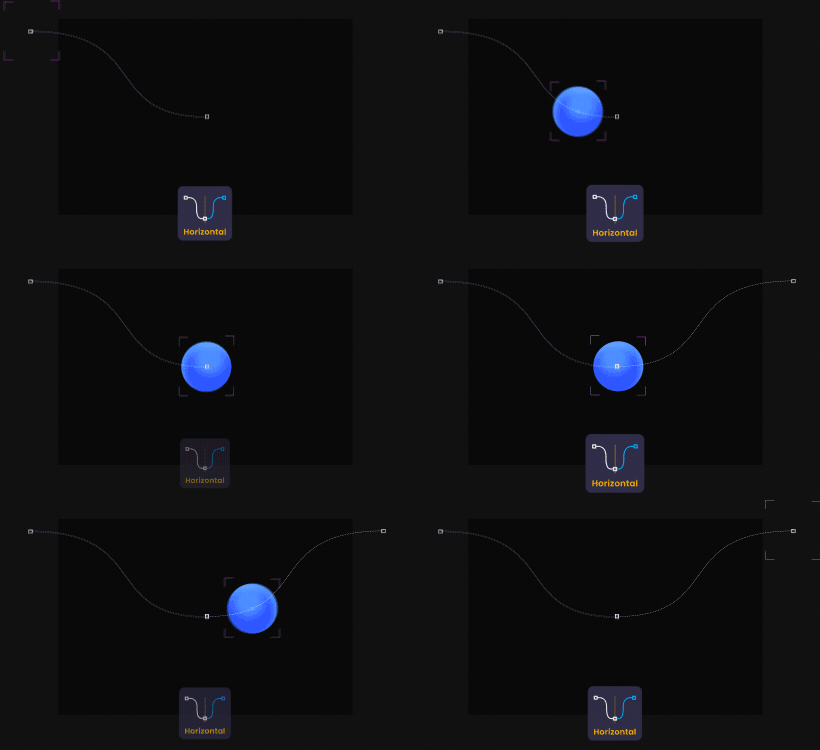
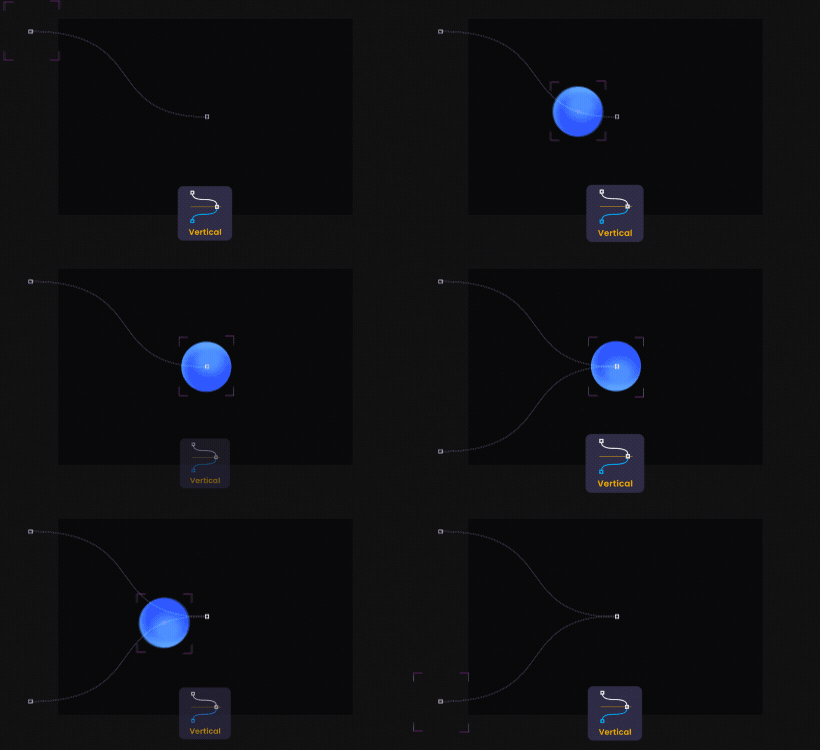
Flip Animation is an After Effects helper script for flipping, mirroring, and reversing Position keyframe animations with precise control. You can mirror motion horizontally, vertically, or both—using either the Comp Center or the layer’s Current Position as the reference. It also includes a creation tool that generates reversed/mirrored keyframes after your original animation, with adjustable delay and scale.
Features
- Flip / mirror Position keyframes for one or multiple layers
- 3 flip directions: Horizontal, Vertical, Both
- 2 reference modes: Center Comp or Current Position
- Optional Flip Rotation (invert rotation keyframes when using Center Comp)
- Generate a second animation by creating reversed keyframes after the original
- Customize creation with Delay (frames) and Scale multiplier
- Great for symmetrical motion, looping setups, and mirrored transitions
How to Use
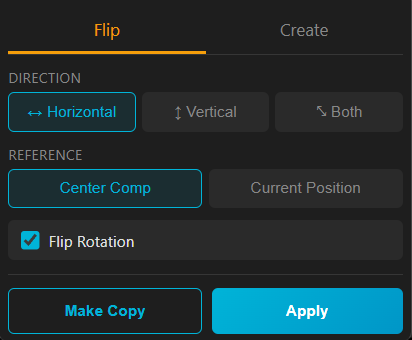
FLIP Tab 1. Select one or more layers that already have Position keyframes. 2. Choose Direction: Horizontal (↔), Vertical (↕), or Both (⤡). 3. Choose Reference: - Center Comp: mirrors around the composition center. - Current Position: mirrors around the layer’s current Position value. 4. (Optional) Enable Flip Rotation - Works when using Center Comp and will also invert rotation keyframes. 5. Click Apply to flip the selected layers, or Make Copy to duplicate and flip the copy.
CREATE Tab
1. Select a layer with at least 2 Position keyframes.
2. Choose Mirror Mode:
- Same Path (reverse only)
- Flip X (reverse + mirror horizontal)
- Flip Y (reverse + mirror vertical)
- Flip XY (reverse + mirror both)
3. Set Delay (frames): the gap between the last original keyframe and the first new keyframe.
4. Set Scale: distance multiplier for the new keyframes
- 1 = same size, > 1 = larger, < 1 = smaller
5. Click Create Reversed Keyframes to generate the mirrored animation after the original.