Effect Presets
Save effect stacks from any layer as reusable presets, then apply them to any layer in one click. Each preset captures the full effect chain with all parameter values — build your personal library of signature looks and apply them across projects without digging through menus.

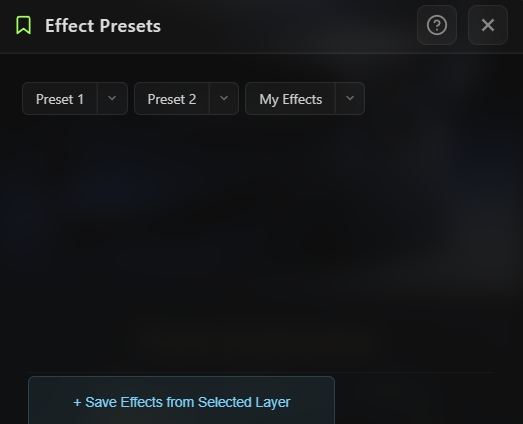
Overview
Effect Presets is a personal preset library for After Effects that lives inside your panel. Capture the entire effect stack from any selected layer — every effect, every parameter value — and save it as a named preset. Then apply that preset to any layer in any project with a single click. Unlike AE's native preset system, your presets live inside MotionDesk Panel and are always at your fingertips, so building and reusing your signature looks becomes effortless. During save, you can review the captured effects as chips and remove any you don't want to include. Rename and delete presets at any time from a context menu. All presets persist across sessions.
Features
Save Effect Stacks
- One-click capture of all effects from the first selected layer
- Captures every effect's matchName, display name, and all parameter values
- Preview modal shows every captured effect as a deletable chip before saving
- Remove unwanted effects from the capture by clicking the × on their chip
- Name each preset during save; defaults to "Preset N" for quick saving
Apply with One Click
- Click any preset chip in the grid to apply it to all selected layers at once
- Every effect in the preset is added in order with its parameters restored
- Works across multiple selected layers — apply the same preset to an entire selection
- Toast confirmation shows which preset was applied
Preset Management
- Context menu on every preset (accessed via the arrow on each chip):
- Presets display as compact chips that wrap to fit the available space
- Empty state shows a hint when no presets exist yet
Persistent Local Library
- Presets are stored in the panel's local storage
- Library persists across After Effects sessions and project switches
- Build your library once and it follows you everywhere
Universal Compatibility
- Effect matching uses matchName only, so presets work correctly in every After Effects language
- Captures only parameter values (numbers, colors, 2D/3D points) — skips unsupported references like layer or mask pickers
- Parameters are written back via matchName, ensuring presets apply identically regardless of AE's interface language
How to Use
Save a New Preset
1. Apply any effects to a layer in After Effects and dial in the parameter values you want to save. 2. Select that layer in the timeline. 3. Open the Effect Presets tool from the Quick Tools menu or toolbar. 4. Click + Save Effects from Selected Layer at the bottom. 5. The modal shows every captured effect as a chip: - Click the × on any chip to remove that effect from the preset 6. Enter a name for the preset and click Save. 7. The new preset appears in the grid as a clickable chip.
Apply a Preset
1. Select one or more target layers in your timeline. 2. Click any preset chip in the grid. 3. All effects from the preset are added to every selected layer with the saved values restored.
Rename or Delete a Preset
1. Click the arrow (▼) on any preset chip to open the context menu. 2. Click Rename to give the preset a new name. 3. Click Delete to remove the preset from your library.
Notes
- Effect Presets only captures the first selected layer when saving — select the exact layer whose effect stack you want to save.
- Applying a preset adds effects on top of any existing effects on the target layer — it doesn't replace them. Remove existing effects first if you want a clean result.
- Parameter references (like layer pickers or mask references in effects such as Set Matte) are not captured, since they can't reliably be translated between projects. Only numeric and color parameters survive the save.
- Keyframes are not captured — presets store a single static value per parameter. Animate effects after applying the preset if you need motion.
- The library is stored locally in this panel's storage — if you want to move presets between machines, export/import features will come in a future update.
- Rename is a great way to organize your library as it grows — use prefixes like "Glow — …", "Grade — …", or "VFX — …" to group related presets visually.
- Because presets use matchName, you can safely build a preset on an English AE and apply it on a Japanese, German, or French AE with identical results.