Ease Transfer
Copy the full easing and value data from any keyframe and paste it onto any other keyframes across your timeline. Transfer the ease curve, the keyframe value, or both — the fastest way to replicate a single keyframe's character across an entire animation.

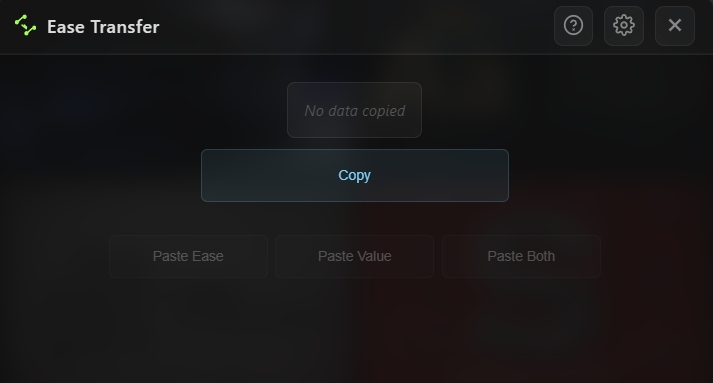
Overview
Ease Transfer is a clipboard-style tool for copying and pasting keyframe data in After Effects. Click Copy on any selected keyframe to capture its full character — interpolation types, temporal ease influence and speed, and even the keyframe value itself. Then select any other keyframes in your timeline and paste the ease, the value, or both with a single click. A live display shows exactly what's on the clipboard at any time, so you always know what will be pasted. Perfect for replicating the exact feel of one keyframe across an entire animation, or for quickly normalizing mixed eases in a timeline.
Features
Copy Keyframe Data
- Copy — Capture the full data of the first selected keyframe in one click
- Captures all three pieces of a keyframe at once:
- Works on any animatable property — transform, effects, shape paths, text, and more
Paste Modes
Three independent paste actions for flexible workflows:
- Paste Ease — Apply only the interpolation type and ease curve; keyframe values remain untouched
- Paste Value — Apply only the captured value; existing ease stays intact
- Paste Both — Apply the ease and the value together for an exact replica
Live Data Display
- Built-in readout shows exactly what's on the clipboard:
- Color-coded labels for quick visual scanning (In, Out, Value)
- Display can be hidden from the settings cog for a compact layout
Smart State Management
- Paste buttons are automatically disabled until data has been copied
- Once data is captured, all three paste buttons become active
- Works across layers — copy from one layer, paste onto another
How to Use
1. Open the Ease Transfer tool from the Quick Tools menu or toolbar. 2. Copy a keyframe: - Select a single keyframe in your timeline that has the ease/value you want to reuse - Click Copy - The live display updates with the captured In, Out, and Value data 3. Paste onto other keyframes: - Select any number of target keyframes in the timeline - Click one of: - Paste Ease to apply only the curve and interpolation - Paste Value to overwrite only the keyframe value - Paste Both to apply the complete character of the copied keyframe 4. (Optional) Toggle the live data display from the settings cog if you want a more compact view.
Notes
- Copy only captures the first selected keyframe — if multiple keyframes are selected, the rest are ignored. Select just one to be precise.
- Paste works across all selected keyframes at once, even across multiple layers and properties — select widely to apply in bulk.
- Paste Value is especially powerful for synchronizing values across property groups (e.g., making every opacity keyframe equal to 100%) without touching the timing.
- Paste Ease is the go-to for normalizing mixed eases — copy one keyframe you like, select everything, paste ease, done.
- The tool is smart about Hold and Linear keyframes — when you copy a Hold or Linear keyframe, pasting the ease correctly sets the interpolation type even though those types don't have influence values.
- Paste Both is the closest thing to a "duplicate this keyframe's personality" — use it when you want a perfect clone of one keyframe's character across many others.