Ease Lab
A visual bezier curve editor for custom easing in After Effects. Drag control points to craft the exact ease curve you want, save it as a reusable preset, and apply it to any keyframed property — transforms, effects, masks, shapes, text, and more. Includes built-in presets (Ease Out, Ease In, In Out, Expo Out, Back Out) and supports organizing your library into custom categories.

Overview
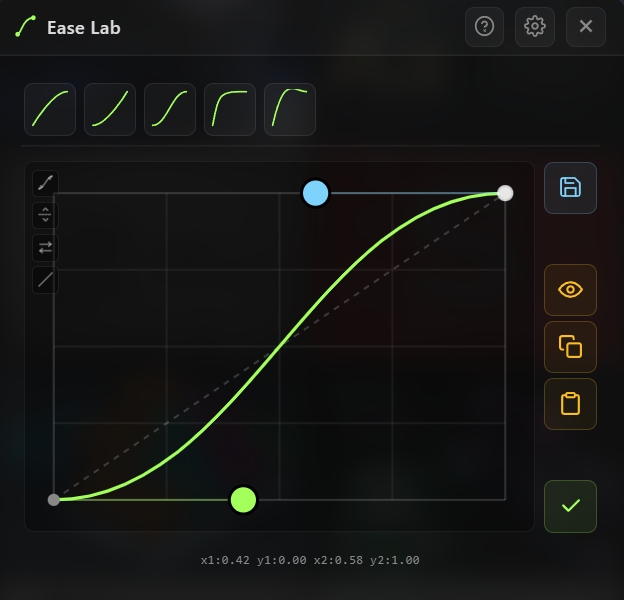
Ease Lab is a visual bezier curve editor for crafting custom easing in After Effects. Drag the control points on an interactive graph to shape the exact curve you want, then apply it to any selected keyframes with a single click. Save your favorite curves as named presets in a compact swatch rail that lives permanently inside the panel — your personal ease library, always one click away. Ease Lab walks every animatable property on your selected layers — transforms, effects, masks, shape contents, text, and even time remapping — and translates your custom bezier curve into native AE ease influences, so the result is a real keyframe ease, not an expression. Organize presets into custom categories with optional tabs, resize the swatch rail to match your workflow, and rearrange presets with drag-and-drop.
Features
Interactive Bezier Curve Editor
- Live graph with two draggable bezier control points
- Drag handles or type exact x1, y1, x2, y2 values for precision
- Graph size is adjustable (120–360 px) for comfortable editing
- Curve is rendered in real-time as you drag — no preview delay
Built-in Preset Library
Five built-in curves ship by default, each with its own keyframe ease influence pair (In % / Out %):
- Ease Out — Standard ease out (In 42% / Out 0%)
- Ease In — Standard ease in (In 0% / Out 42%)
- In Out — Symmetric ease in-out (In 42% / Out 42%)
- Expo Out — Exponential decay (In 78% / Out 19%)
- Back Out — Slight overshoot with bounce-back (In 36% / Out 34%)
Custom Preset Management
- Save — Overwrite the preset currently loaded into the editor
- Save As — Create a new preset with a custom name
- Rename — Change a preset's name via prompt
- Delete — Right-click any preset swatch to remove it
- Drag-and-drop reordering — Rearrange presets in the rail
- Presets persist across sessions in the panel's local storage
Two Workflow Modes
- Click-to-apply mode — When the editor is collapsed, clicking a swatch applies that curve directly to selected keyframes
- Click-to-edit mode — When the editor is open, clicking a swatch loads that curve into the editor for modification
- Toggle between modes by opening/closing the editor pane
Category Organization (Optional)
- Enable categories from the settings cog to group presets into custom buckets
- Two display modes:
- Drag-and-drop categorization — Drop a preset onto a tab or section to move it between categories
- Rename the "General" bucket to match your naming conventions
- Categories are fully optional — skip them for a flat library
Universal Property Support
Applies the custom ease curve to every animatable property type in AE:
- Transform — Position, Scale, Rotation, Opacity, Anchor Point
- Effects — Every parameter of every effect in the effect parade
- Masks — Mask Path, Feather, Opacity, Expansion
- Layer Styles — Shadows, glows, strokes, and all other layer style parameters
- Material Options — 3D material controls for 3D layers
- Audio — Audio Levels
- Shape Contents — All shape layer parameters (path, fill, stroke, transform)
- Text Properties — Text animator parameters
- Time Remapping — Time-warped keyframes
Adjustable Swatch Rail
- Five preset swatch sizes (small → huge) — pick the size that matches your screen and workflow
- Resizable graph — Make the editor pane larger when tweaking detailed curves
- Compact mode — Hide the editor to show just the swatch rail for maximum preset real estate
How to Use
Apply a Built-in Preset
1. Select the keyframes you want to ease in the timeline. 2. Open Ease Lab from the Quick Tools menu or toolbar. 3. Click any preset swatch in the rail (Ease Out, Ease In, In Out, Expo Out, Back Out). 4. The curve is applied to all selected keyframes instantly.
Create a Custom Curve
1. Open Ease Lab and make sure the editor pane is visible. 2. Drag the two bezier control points on the graph to shape your curve. 3. Or type exact x1, y1, x2, y2 values in the input fields. 4. Click Apply to apply the current curve to selected keyframes without saving.
Save a Custom Preset
1. After shaping a curve in the editor, type a name in the name field. 2. Click Save As to create a new preset. 3. The new swatch appears in the rail, ready to use.
Edit and Overwrite a Preset
1. Click a preset swatch while the editor is open — the curve loads into the editor. 2. Modify the curve by dragging control points or editing values. 3. Click Save to overwrite the original preset with your changes.
Delete a Preset
1. Right-click any preset swatch in the rail. 2. Confirm deletion in the prompt.
Organize with Categories
1. Open the settings cog and enable Categories. 2. Create category names from the settings dialog. 3. (Optional) Enable Tabs display mode to show categories as a horizontal tab strip. 4. Drag preset swatches onto tabs or section headers to move them between categories. 5. Rename the default "General" bucket to anything you like.
Notes
- Ease Lab writes real keyframe eases, not expressions — so your curves survive export, render, and hand-off to other AE users. No expression engine required.
- The editor translates your 2D bezier curve into AE's native influence-based temporal ease — the x-positions of the control points become influence percentages, with the curve's shape approximated as closely as possible.
- Back Out and other overshoot curves (with y values above 1) produce real overshoot in AE — the keyframe values temporarily overshoot their target and settle back, just like you'd expect.
- Universal property walker means you can apply an ease curve to an entire layer's animation at once — select all layers, select all keyframes, click a preset, and every animated property gets the new ease.
- Categories are most useful for large libraries — once you have 15+ presets, organize them into buckets like "Motion", "VFX", "UI", "Bounce" for faster access.
- Drag-and-drop reordering is the fastest way to promote your most-used presets to the front of the rail — no menus, no dialogs.
- The Custom curve in the editor resets to the classic In-Out default whenever you open the panel — your saved presets are safe, but the work-in-progress curve isn't persistent until you save it.
- Turn the editor pane off (close it) when you're in pure "apply" mode — the swatch rail alone gives you maximum preset density and zero distractions.