Create
One-click creation toolkit for compositions, layers, and custom shapes. Spawn new comps from industry-standard presets, drop in nulls, solids, text, adjustment layers, and pre-wired custom shapes (Spiral, Cross, Corner Rectangle) with built-in expression controls — all from a single customizable panel.

Overview
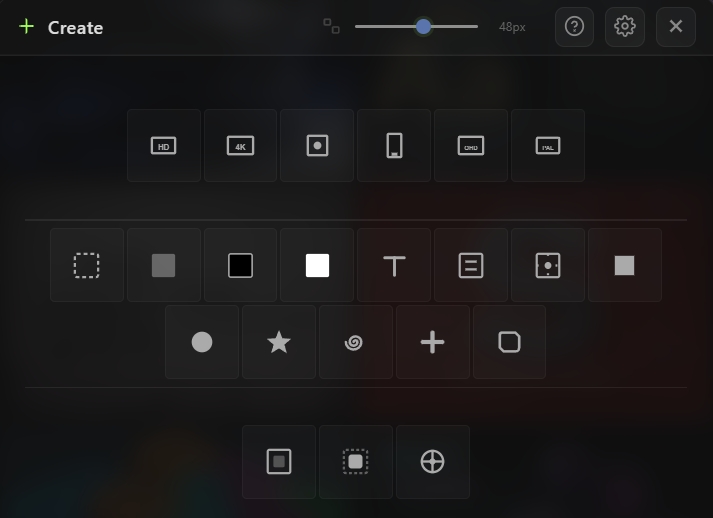
Create is a one-click creation toolkit for After Effects. Spin up new compositions from industry-standard presets, drop in any type of layer, and handle common workflow utilities — all from a single panel. No more digging through menus for solids, adjustment layers, or pre-composes. Every button in Create is a single click away, and the whole toolbar is fully customizable so you see only the items you actually use. Beyond the standard AE primitives, Create also includes custom shape layers with built-in expression controls — letting you tweak spirals, crosses, and corner rectangles live from the Effect Controls panel without touching the shape layer itself.
Features
Composition Presets
- One-click composition creation with pre-configured dimensions, frame rate, and duration:
- Every preset opens the new comp directly in the viewer
Standard Layers
- Null Object — Clean control layer for parenting and rigging
- Solid (Gray) — Comp-sized 50% gray solid
- Black Solid — Comp-sized pure black
- White Solid — Comp-sized pure white
- Text Layer — Text layer with your configurable default string
- Adjustment Layer — Comp-sized adjustment layer for global effects
- Guide Shape Layer — Empty shape layer pre-flagged as a guide
Standard Shapes
- Rectangle Shape — Shape layer with a rectangle primitive
- Ellipse Shape — Shape layer with an ellipse primitive
- Star Shape — Shape layer with a star primitive
Custom Shape Builders
Advanced shape layers with pre-wired expression controls in the Effect Controls panel:
- Spiral — Fully parametric spiral with controls for:
- Cross — Per-arm cross with independent trim controls for each arm:
- Corner Rectangle — Rectangle with independent per-corner styling:
Workflow Utilities
- Pre-compose Selected — Wrap selected layers into a new pre-comp in one click
- Pre-compose to Bounds — Smart pre-compose that trims the new comp to the tight bounding box of the selected layers, with configurable padding (0–500 px)
- Center Anchor Point — Snap the anchor of every selected layer to its visual center instantly
Customization
- Hide any button you don't use from the settings cog — every item in the panel can be toggled off
- Toggle the entire composition presets row with a single checkbox
- Default text string for new Text Layers — set once, use forever
- Pre-compose to Bounds padding — adjust the margin (px) added around trimmed bounds
How to Use
1. Open the Create tool from the Quick Tools menu or toolbar. 2. Create a new composition (top row): - Click any preset to spawn a new comp with those exact specs - The new comp opens immediately in the viewer 3. Create layers (middle row): - Click any layer button to add it to the current composition - For Text Layers, the default string is set in the settings cog - For Custom Shapes (Spiral, Cross, Corner Rectangle), the layer is created at comp center with expression controls ready in the Effect Controls panel 4. Run utilities (bottom row): - Select layers first, then click Pre-compose Selected to wrap them - Pre-compose to Bounds trims the new comp tightly around the selected layers — useful for exporting isolated elements - Center Anchor Point snaps the anchor of every selected layer to its visual center 5. Customize the toolbar (optional): - Click the settings cog in the header - Hide buttons you don't use, set the default text string, and adjust the pre-compose padding
Notes
- Custom Shape Builders (Spiral, Cross, Corner Rectangle) are fully expression-driven — every parameter lives in the Effect Controls panel, so you can animate them with keyframes, link them to sliders, or drive them from expressions just like any other effect.
- Pre-compose to Bounds is the fastest way to isolate a group of layers into their own tight container — great for exporting individual elements, creating reusable assets, or cleaning up a messy timeline.
- Hide buttons you never use to keep the Create panel tight and focused — if you mostly work with HD comps, hide 4K, QHD, PAL, and Vertical to save space.
- The Cross shape has separate trim controls for the horizontal and vertical arms plus a master trim — perfect for build-on/build-off animations where each arm draws independently.
- The Corner Rectangle lets you mix corner styles on a single shape (e.g., rounded top corners with notched bottom corners) — useful for custom card shapes, tags, and UI elements.