Clone Offset
Duplicate any layer in one of eight directions with fully customizable position, rotation, scale, and opacity offsets. Chain up to 50 clones at once to build instant arrays, trails, and cascading patterns — each copy progressively offset from the last with keyframe-aware transforms.
Overview
Clone Offset is a directional duplication tool for After Effects. Click any of the eight compass directions to clone the selected layer(s) with a perfectly calculated offset — each duplicate is placed exactly one layer-width or layer-height away, plus a customizable spacing gap. Add rotation, scale, and opacity offsets for dynamic arrays, and use the count multiplier to spawn up to 50 progressively-offset clones in a single click. Every offset is applied cumulatively across the clone chain, and position changes are keyframe-aware — animated layers keep their full keyframe data intact with every key shifted by the correct amount. Works with separated dimensions and respects 3D position values.
Features
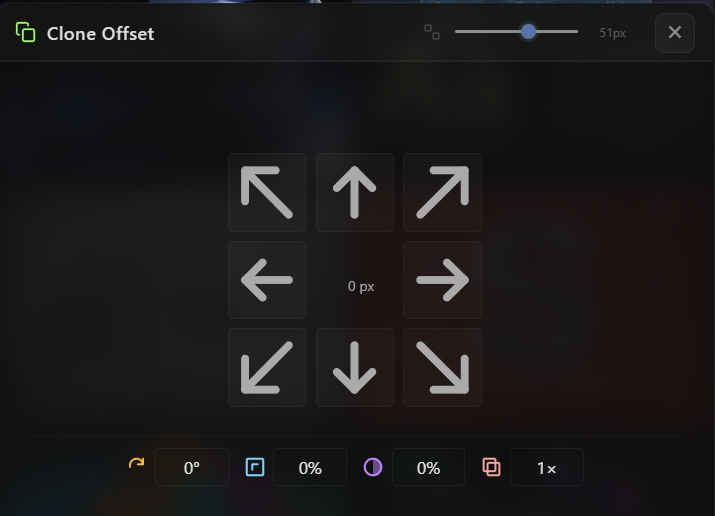
Eight-Direction Grid
- One-click cloning in eight compass directions:
- Each direction places the clone exactly one layer dimension away from the source, calculated from the live bounding box
Offset Distance (center value)
- Offset px — Extra spacing added between each clone beyond the base layer size
- Drag the center number to scrub, or double-click to type an exact value
- Negative values create overlap; positive values create gaps
Transform Offsets
Each clone can carry progressive offsets accumulated from the previous one:
- Rotation Offset (yellow) — Additive degrees applied per clone
- Scale Offset (cyan) — Additive percentage applied to both X and Y (and Z for 3D layers)
- Opacity Offset (magenta) — Additive percentage applied per clone
- Click any offset icon to reset that value to zero instantly
- Drag or double-click any value to adjust
Count Multiplier
- Count (red) — Number of clones to create in a single click (1–50)
- Each clone receives the offset values multiplied by its position in the chain, so clone 5 gets 5× the rotation, 5× the scale offset, and so on
- One click creates the entire array — no need to repeat the action
Keyframe-Aware Transforms
- Animated layers are handled correctly — every position keyframe in the source is shifted by the calculated offset in the clone
- Works with both linked and separated dimensions (X Position / Y Position as independent properties)
- Rotation and scale offsets are applied to every keyframe when the source is animated
- 3D layers preserve their Z-axis values
How to Use
1. Select one or more layers in your composition. 2. Open the Clone Offset tool from the Quick Tools menu or toolbar. 3. (Optional) Set the Offset px value in the center of the grid: - Drag the number to scrub - Double-click to type an exact value - Positive values add spacing, negative values create overlap 4. (Optional) Configure transform offsets in the bottom row: - Rotation (yellow) — degrees per clone - Scale (cyan) — percentage per clone - Opacity (magenta) — percentage per clone - Click any icon to reset that offset to zero 5. (Optional) Set the Count (red) to spawn multiple clones at once (1–50). 6. Click any direction arrow to create the clone(s): - The new clones appear offset from the source in the chosen direction - When count is greater than 1, each subsequent clone accumulates the offset values 7. The newly created clones become the selection, so you can continue cloning from them immediately.
Notes
- Count is the secret weapon for building instant patterns — set count to 10, add a slight rotation offset, and click once to get a full rotating array in a single action.
- Negative Offset px is perfect for creating overlapping effects — great for stacked card layouts or subtle depth effects.
- Rotation + Scale offsets together produce spiral-like fractal arrangements — try rotation 10° with scale -5% and count 15 for a shrinking spiral.
- Opacity offset is ideal for trail effects — set it to -10% with count 5 to create a fading trail automatically.
- The tool works on multiple selected layers at once — each layer gets its own clone chain calculated from its individual bounding box.
- After cloning, the new duplicates become selected, so you can chain operations: clone right, then up, then right again to build complex shapes step by step.
- For pre-composed or nested layers, the clone inherits the source's full setup including effects, expressions, and parenting.