Breeze
Apply realistic breeze/wave animation to layers using mask-based or overall positioning. Supports 5 directions (Top, Bottom, Left, Right, Center) with customizable presets (Default, Breeze, Erratic Wind, Slow Motion, etc.). Optional Two-way mode adds secondary wave for more natural movement.
Overview
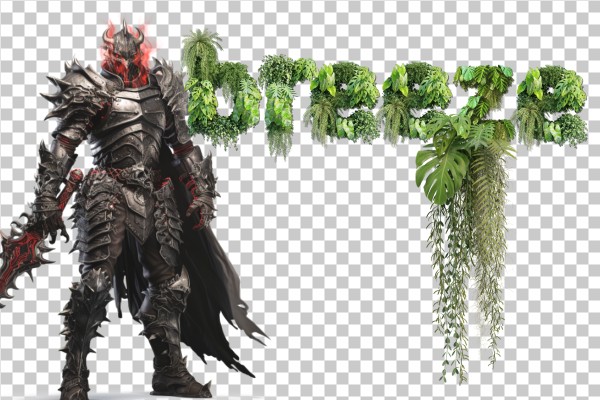
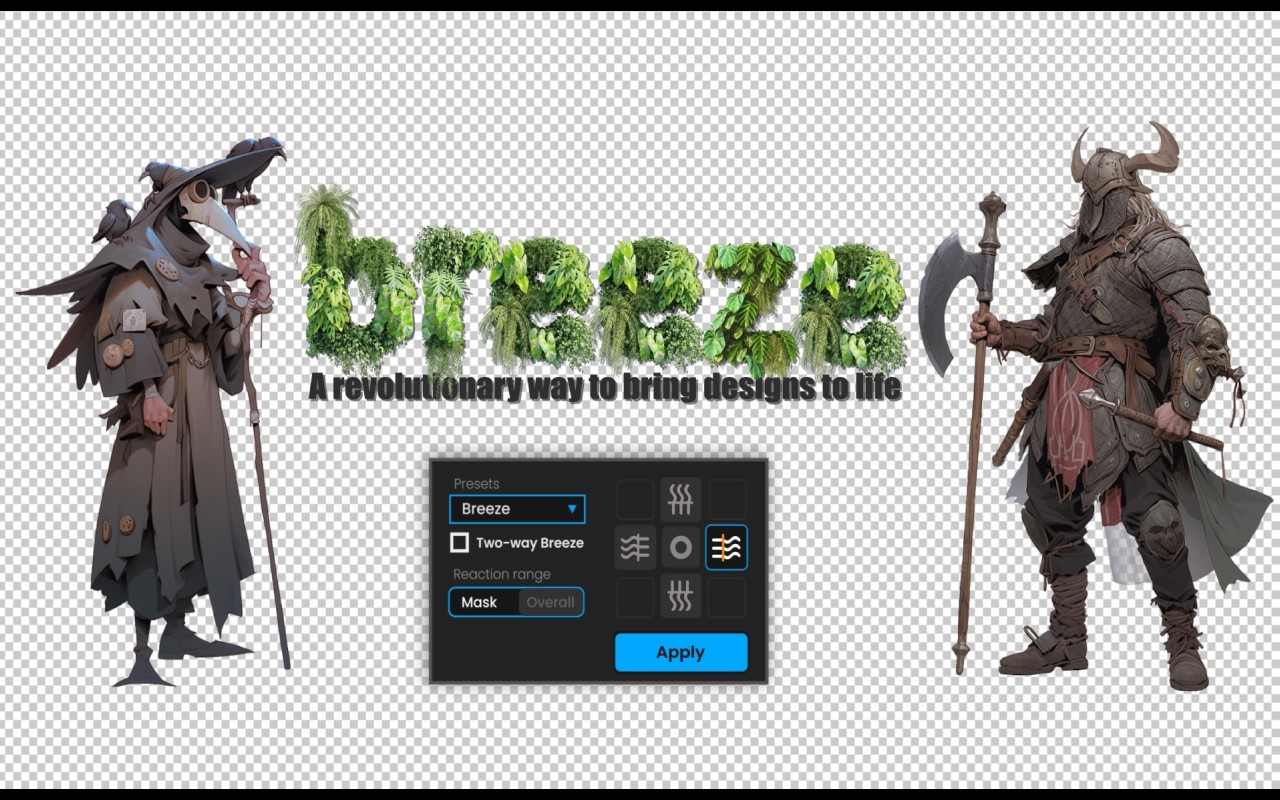
Breeze adds a realistic wind/breeze wave motion to your layers in After Effects. You can drive the animation using a mask-based area (great for flags, cloth, fabric) or apply it to the whole layer for a smooth overall ripple. It’s designed to feel natural, with ready-made presets and easy direction controls.
Features
- Realistic breeze / wave / wind deformation for any layer
- Works in Mask Mode (uses your last mask) or Overall positioning
- 5 directions: Top, Bottom, Left, Right, Center
- Built-in presets (Default, Breeze, Erratic Wind, Slow Motion, and more)
- Optional Two-way Breeze for a secondary wave (more organic motion)
- All controls available inside the "Breeze Setting" effect after applying
How to Use
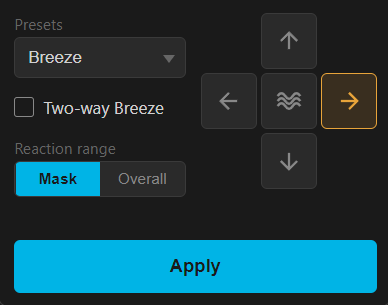
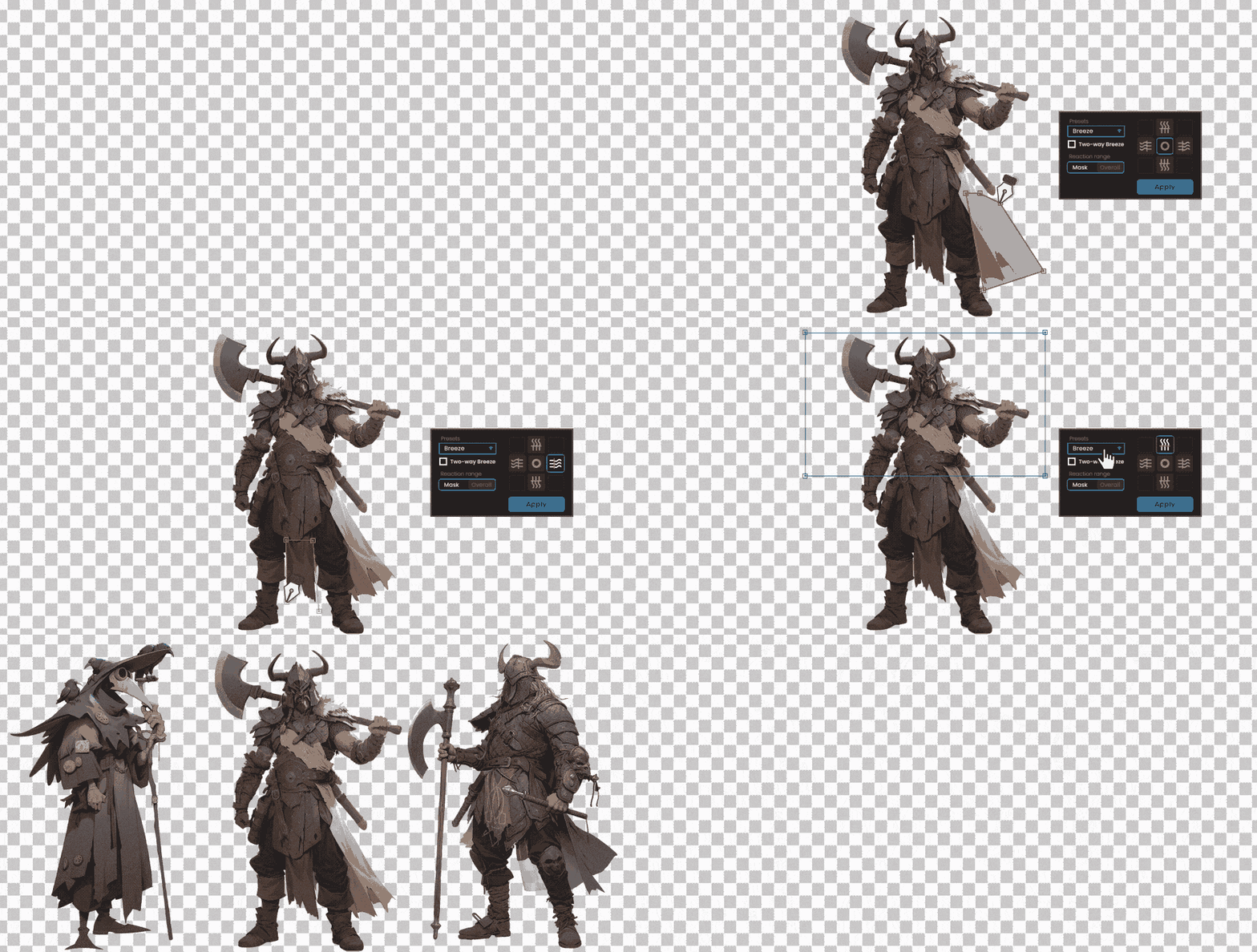
1. Select a layer in your composition. 2. If you want Mask Mode, draw a mask on the layer first (the last mask will be used). 3. Choose a Preset from the dropdown (Breeze, Wind, Slow Motion, etc.). 4. Enable Two-way Breeze if you want a dual-wave look (more natural movement). 5. Choose the Direction using the arrow buttons (↑ ↓ ← →) or Center. 6. Click Apply (or press Enter). 7. Result: the layer gets a "Breeze Setting" effect — tweak its sliders in Effect Controls to fine-tune the animation.
Notes
- Mask Mode is ideal for fabric-like deformations (flags, cloth, curtains).
- Two-way mode is recommended when you want less “loopy” motion and more randomness.
- If the motion feels too strong, reduce amplitude/strength inside Breeze Setting.