Belt Wrapper
Create dynamic convex hulls that wrap around multiple Shape Layers, with automatic obstacle avoidance using deflection shapes. The belt follows your shapes in real-time as they move, scale, or rotate. Features include customizable stroke and fill styles, effect controls for easy adjustments, individual layer offsets, and round corners. Perfect for creating belts, bands, or boundaries around animated elements.
Overview
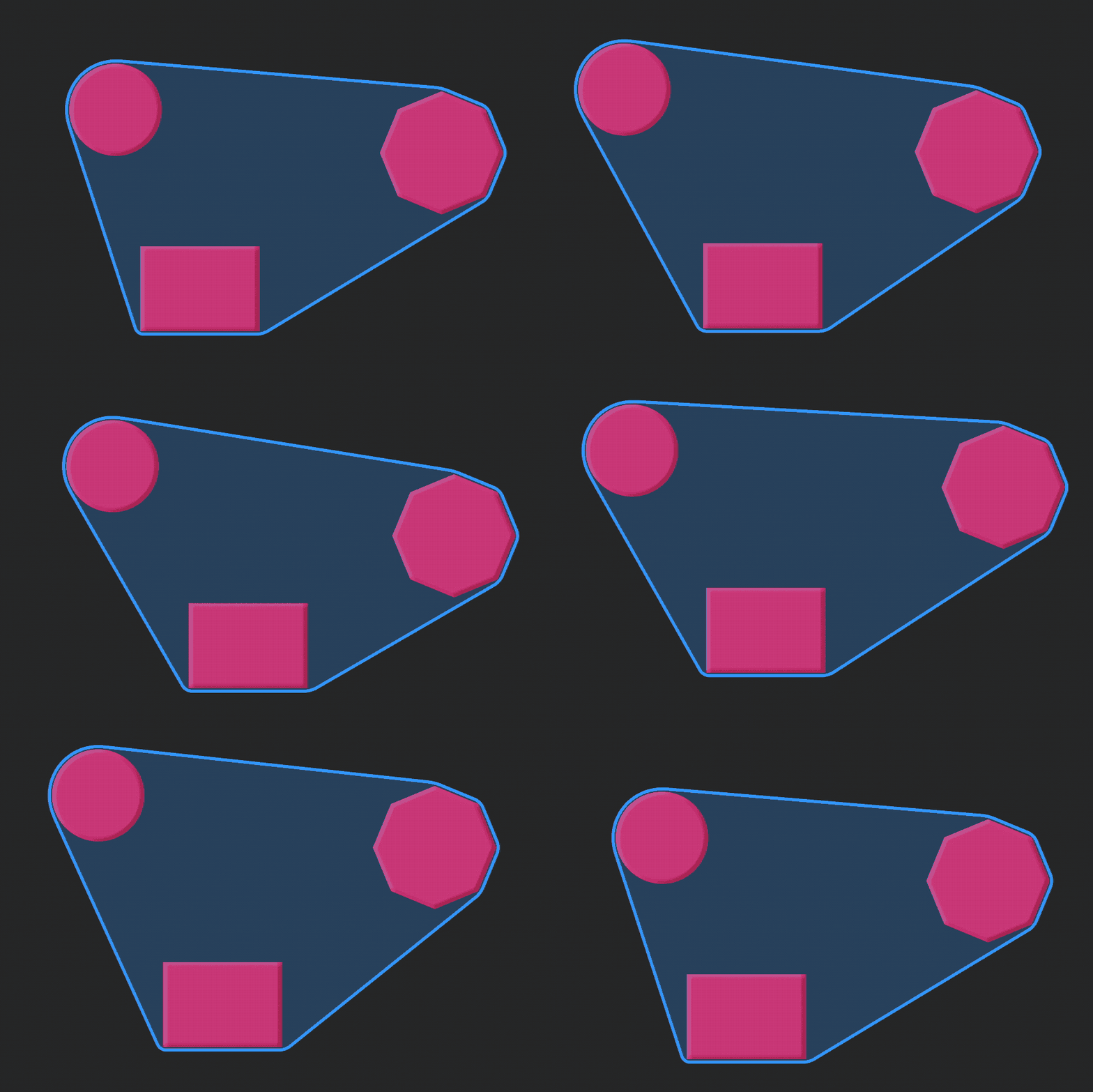
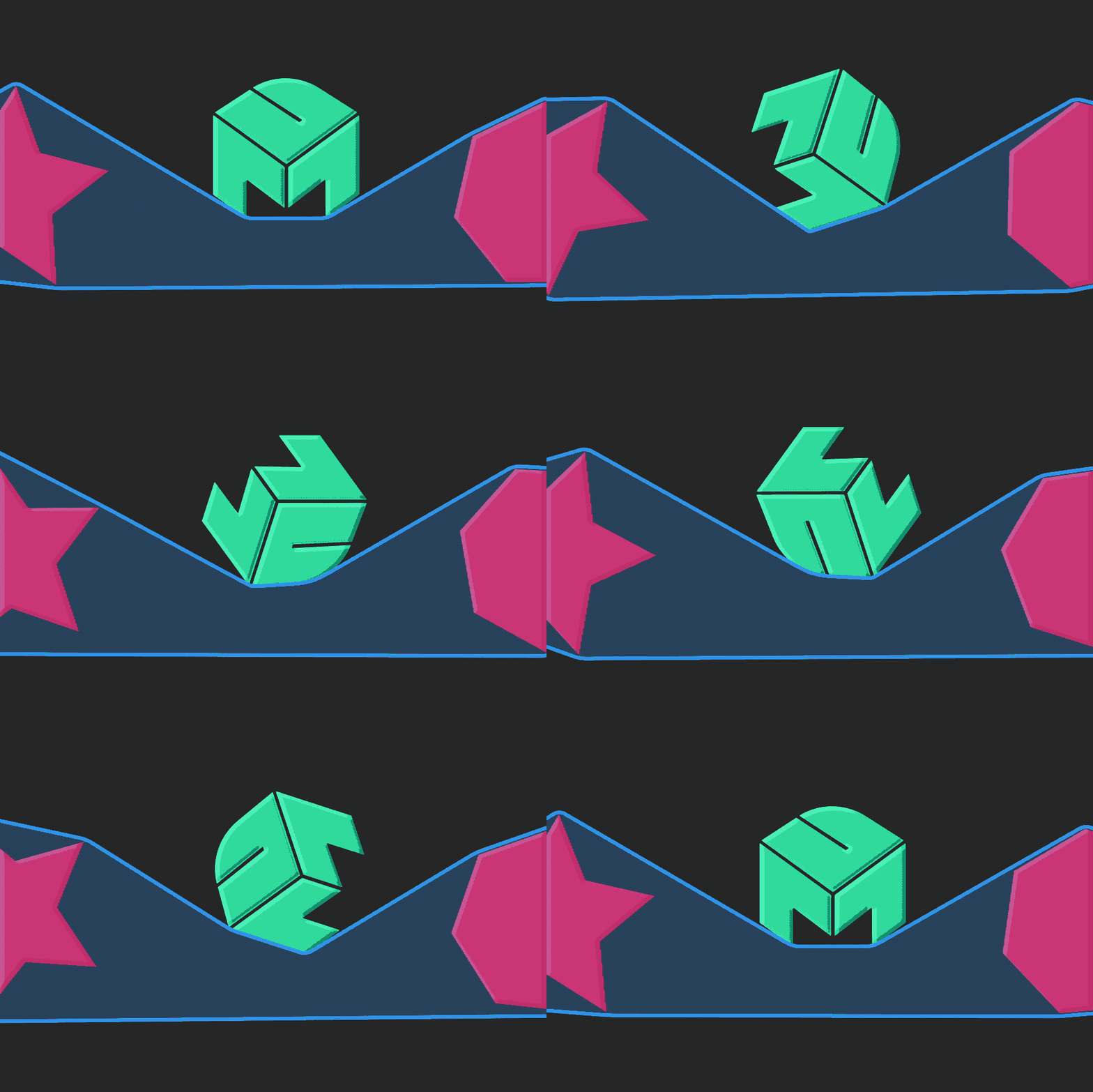
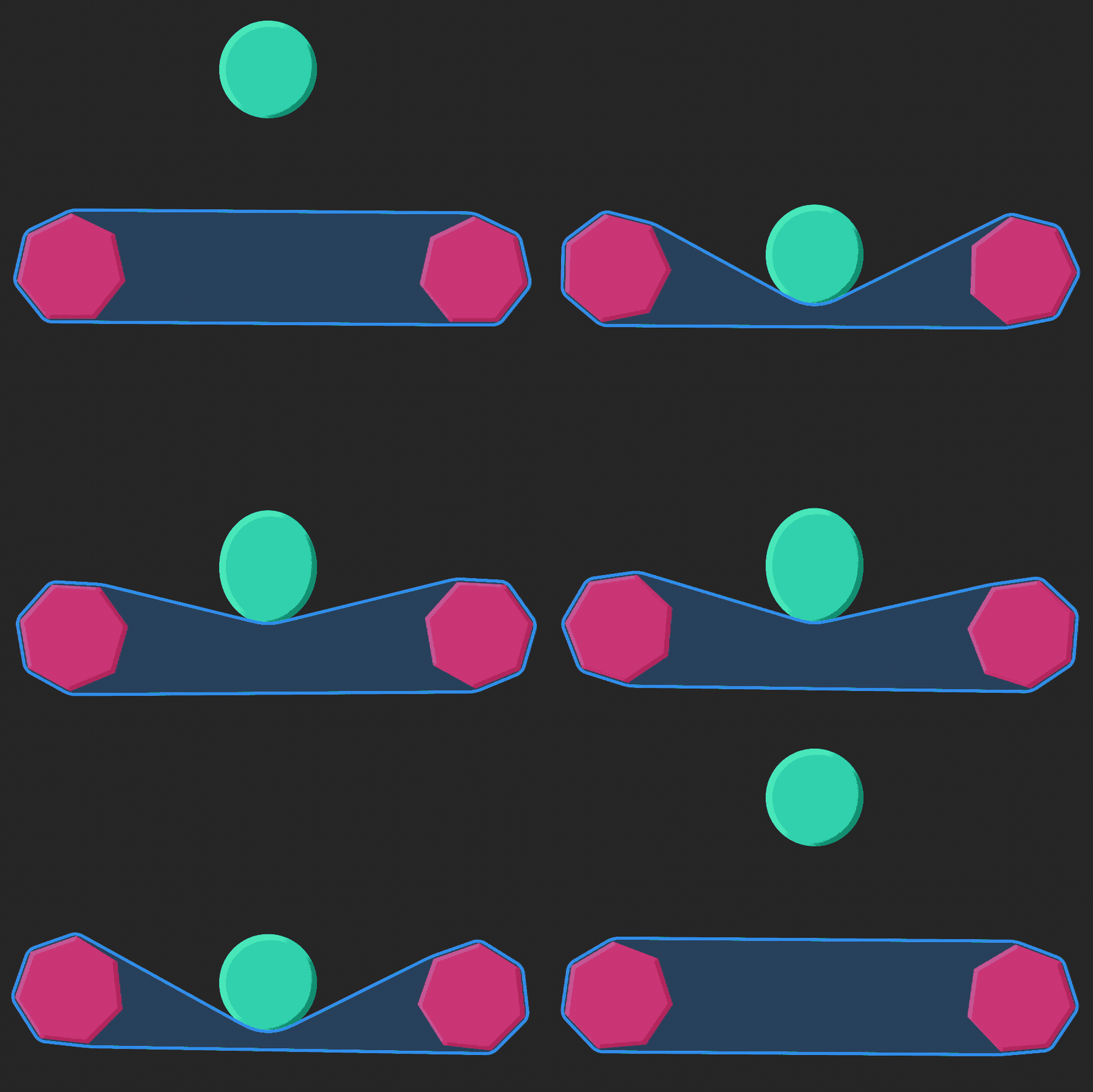
Belt Wrapper creates a dynamic “belt” (convex hull) that wraps around multiple Shape Layers and updates in real time as they move, scale, or rotate. You can also add deflection (obstacle) shapes so the belt intelligently avoids certain areas, making it perfect for animated bands, boundaries, or outline wraps around moving elements.
Features
- Generates a real-time convex hull / belt around multiple Shape Layers
- Updates automatically with layer movement, scale, and rotation
- Obstacle avoidance using Deflection shapes
- Adjustable smoothness via Curve Samples (higher = smoother, slower)
- Optional Individual Layer Offsets (per-layer distance sliders)
- Fully customizable Stroke and Fill:
- Rounded corner controls + global offset controls
- Centralized adjustments via the "Belt Wrapper" effect on the generated layer
How to Use
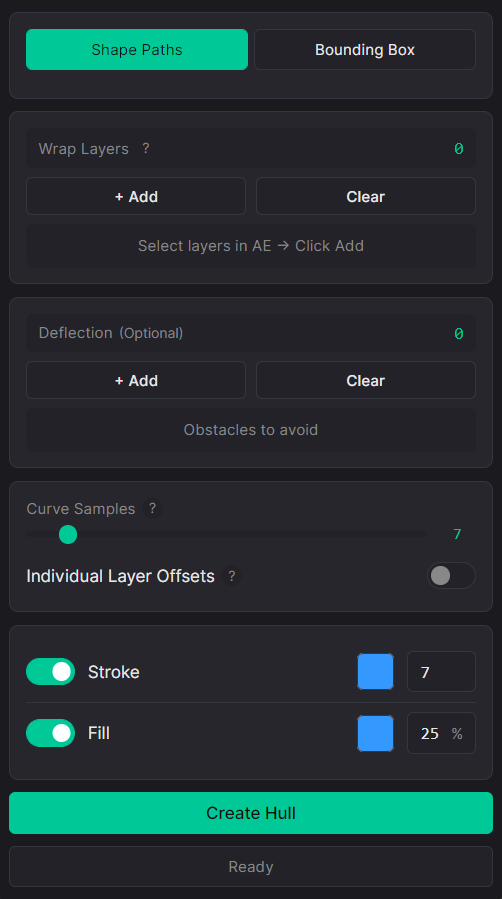
1. Select the Shape Layers you want the belt to wrap around. 2. Click Add to add them to the Wrap Layers list. 3. (Optional) Select obstacle shapes and click Add in the Deflection section (the belt will wrap around/avoid these shapes). 4. Adjust Curve Samples for smoother curves on rounded shapes (higher = smoother but slower). 5. (Optional) Enable Individual Layer Offsets to add per-layer distance sliders in Effect Controls. 6. Customize Stroke and Fill (toggle on/off, pick colors, set stroke width and fill opacity). 7. Click Create Hull to generate the belt wrapper layer. 8. After creation, select the wrapper layer and fine-tune everything in the "Belt Wrapper" effect: - Stroke Style (Solid/Dashed/Dotted) - Round Corners - Global Offset - Additional belt controls
Notes
- Increase Curve Samples only as much as needed to keep performance smooth.
- Works best when your sources are clean Shape Layers with readable silhouettes.